

Table of Contents
Apply an Invoice Surcharge #
Common POS · Shared procedures for retail, restaurant, and salon devices. Button availability follows your device configuration and permissions. Red numbered boxes identify the controls used in each step.
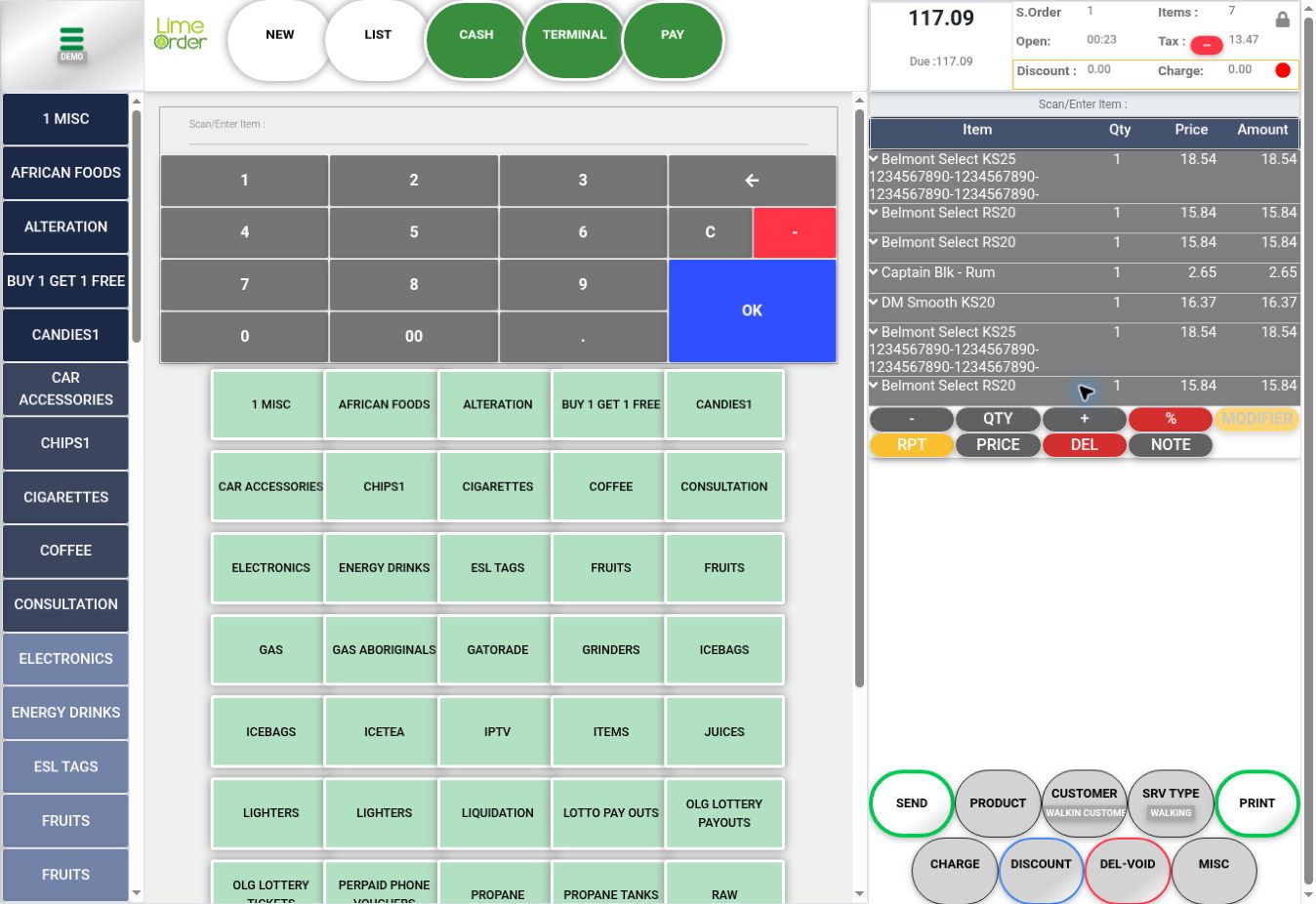
1. Press CHARGE #
On Sales, press CHARGE below the basket.
 1
12. Select the reason and percentage #
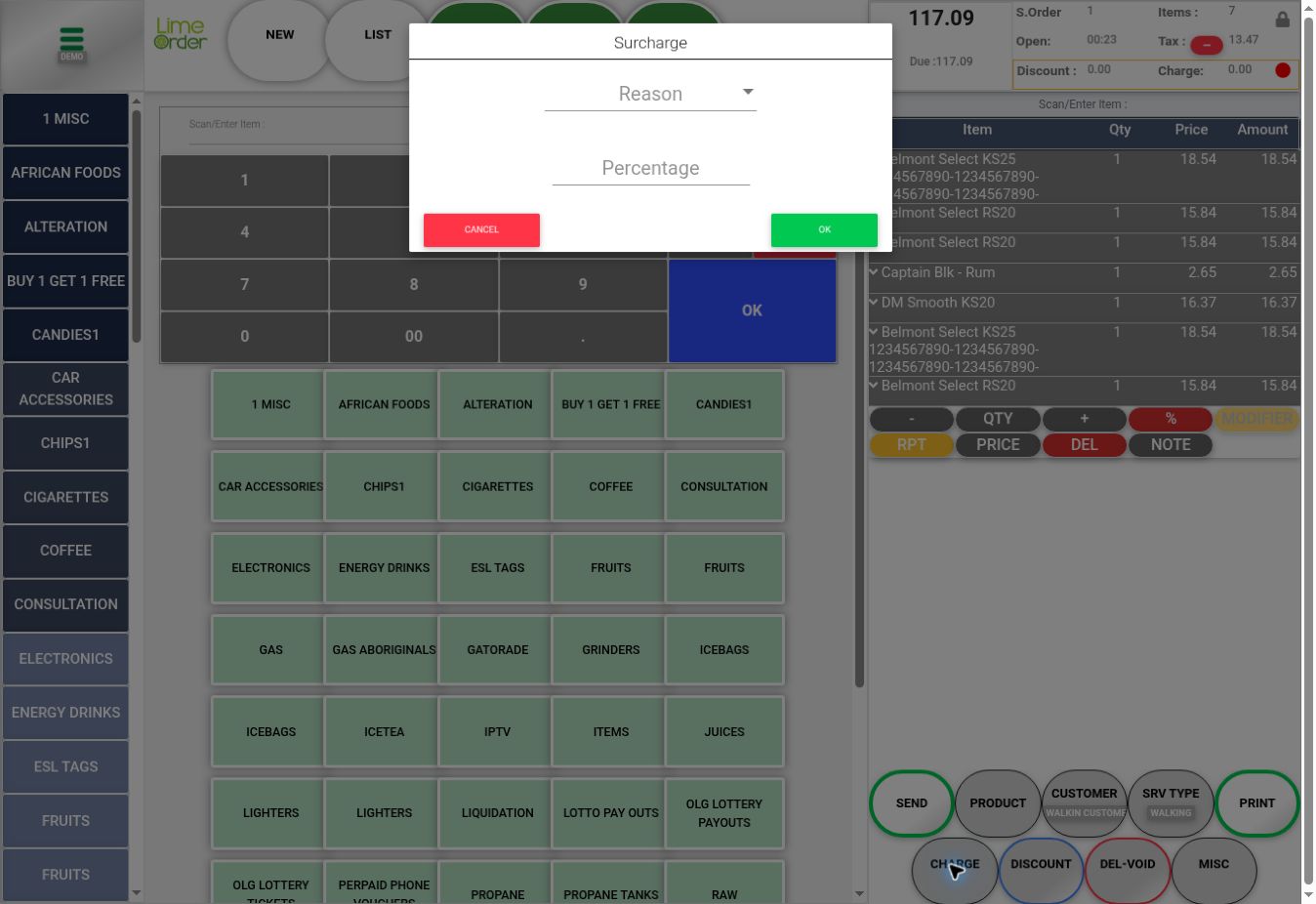
The Surcharge dialog opens. Choose the configured Reason, then enter the intended Percentage.
 23
233. Review and press OK #
Press OK to apply the reviewed charge, or CANCEL to leave without applying it.
34Check the result #
Check Charge and the revised invoice Amount / Due.


