

Device Settings: Every Accessible Tab #
Common POS · Shared procedures for retail, restaurant, and salon devices. Button availability follows your device configuration and permissions. Red numbered boxes identify the controls used in each step.
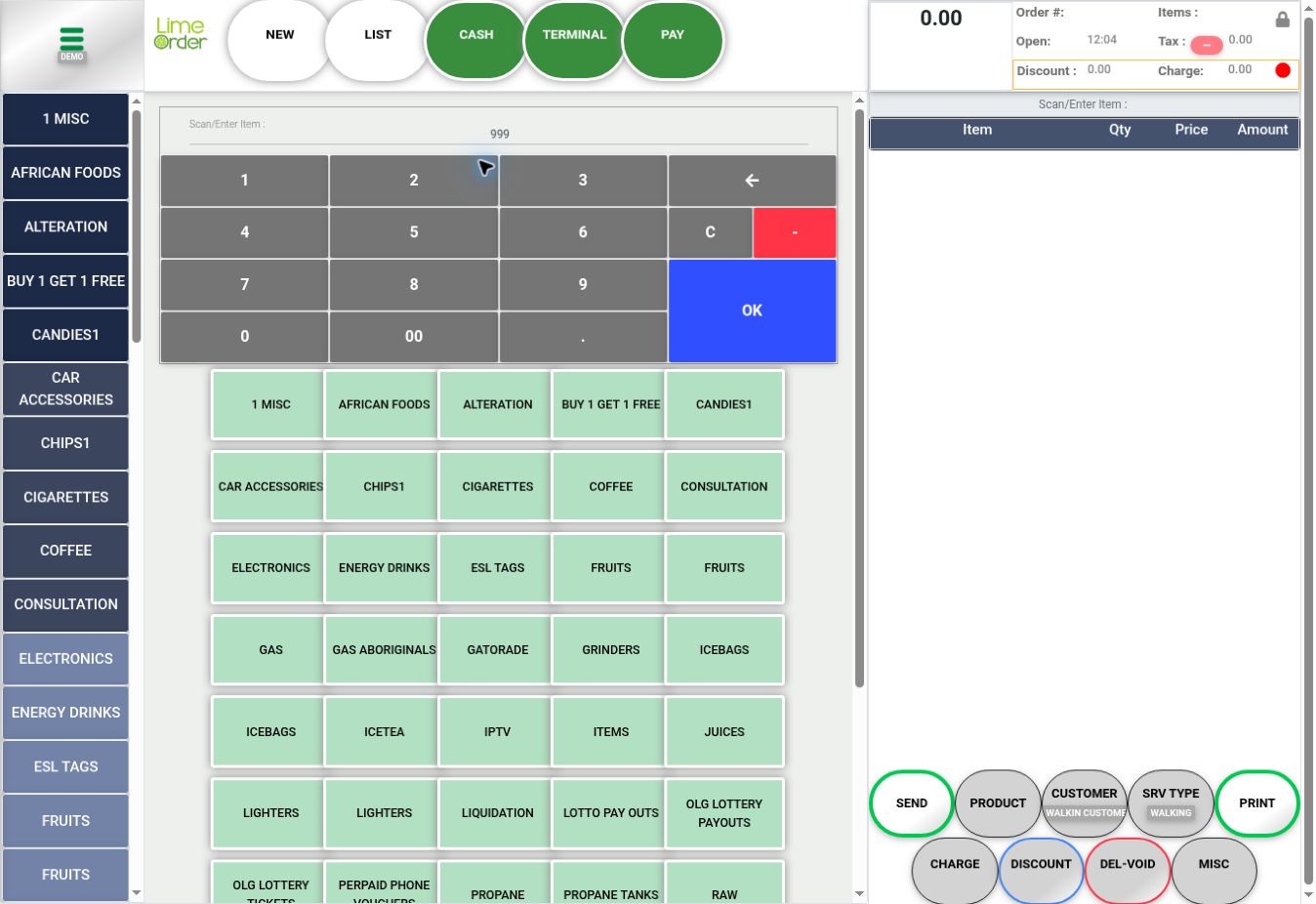
1. Open the menu and choose Device Setting #
On Sales, press the three-bar menu at top left, then choose Device Setting.
 1
1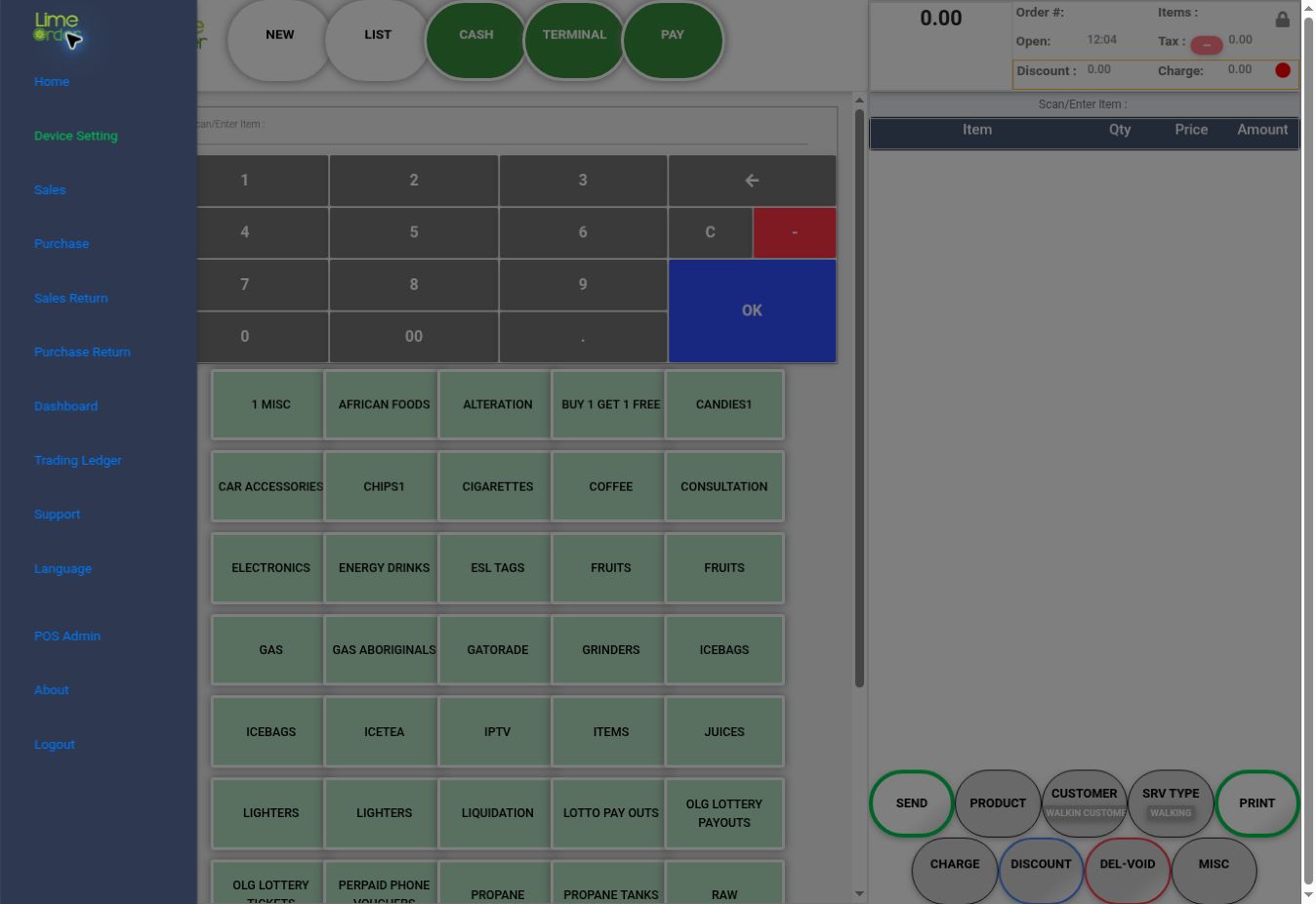 1
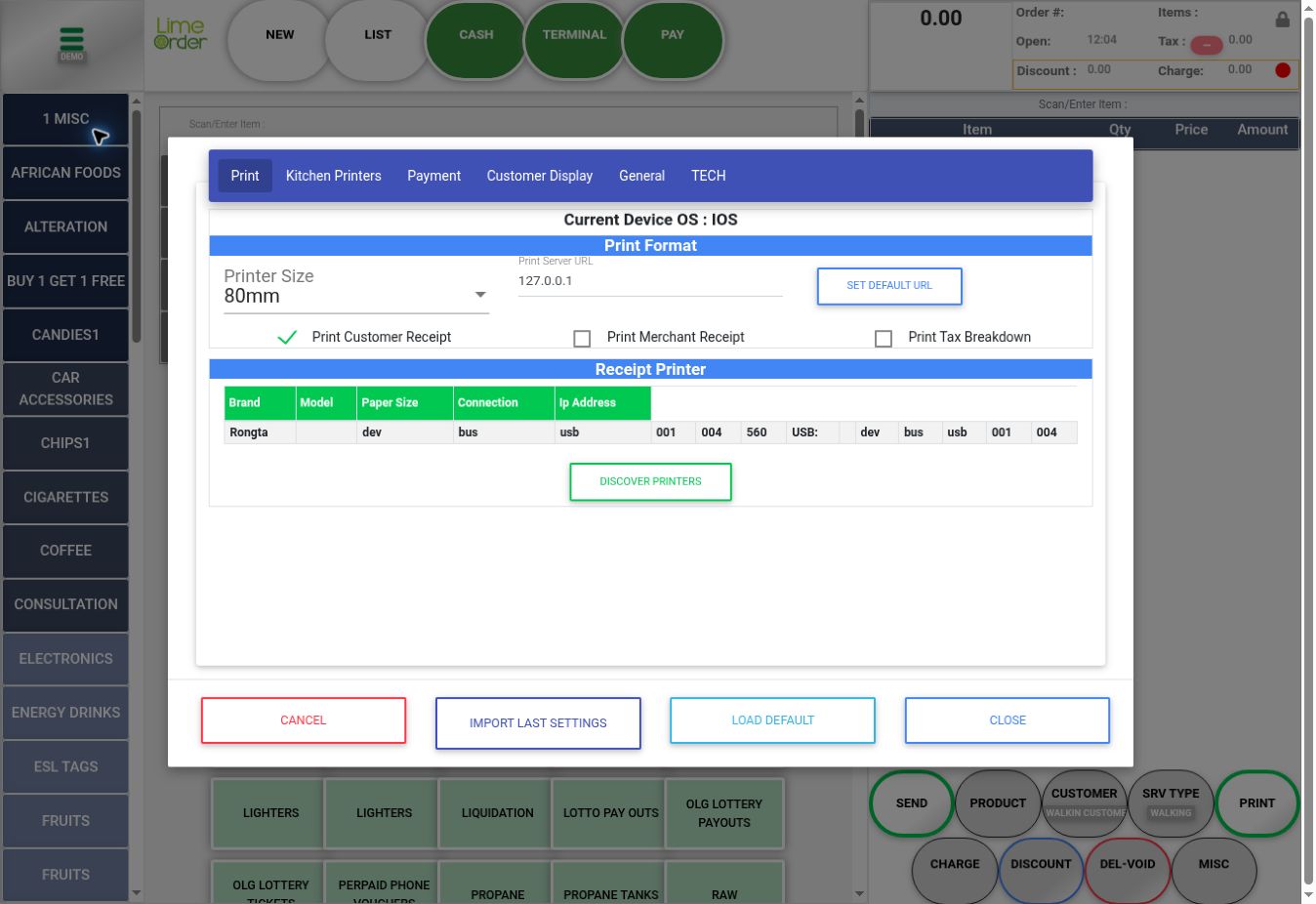
12. Review Print #
Choose Print. Review Current Device OS, Printer Size, Print Server URL, SET DEFAULT URL, Print Customer Receipt, Print Merchant Receipt, and Print Tax Breakdown. The Receipt Printer table lists detected hardware; DISCOVER PRINTERS is the discovery action.
 23
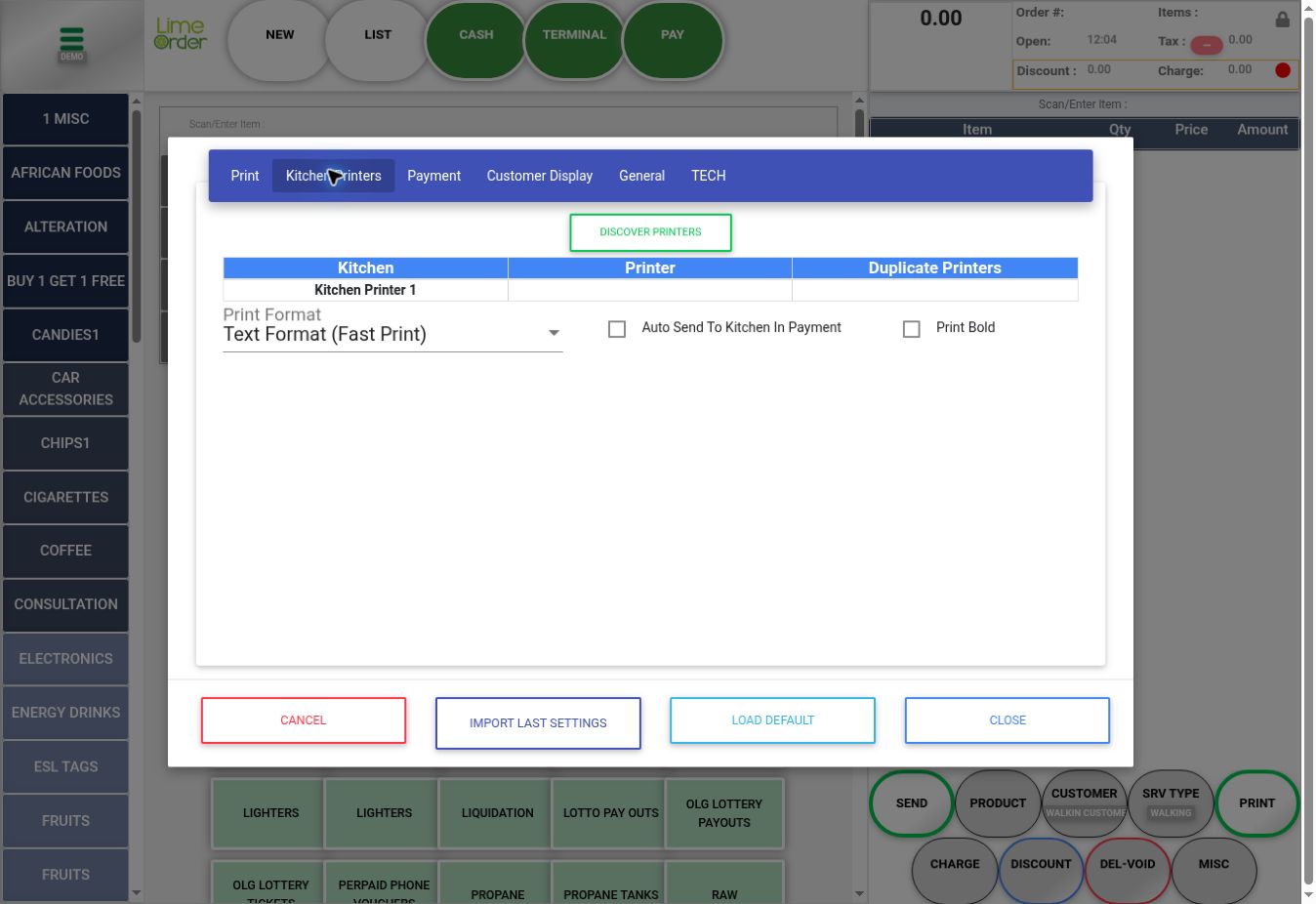
233. Review Kitchen Printers #
Choose Kitchen Printers. Review Kitchen / Printer / Duplicate Printers assignments, DISCOVER PRINTERS, Print Format, Auto Send To Kitchen In Payment, and Print Bold. These controls are relevant when your vertical uses kitchen routing.
 34
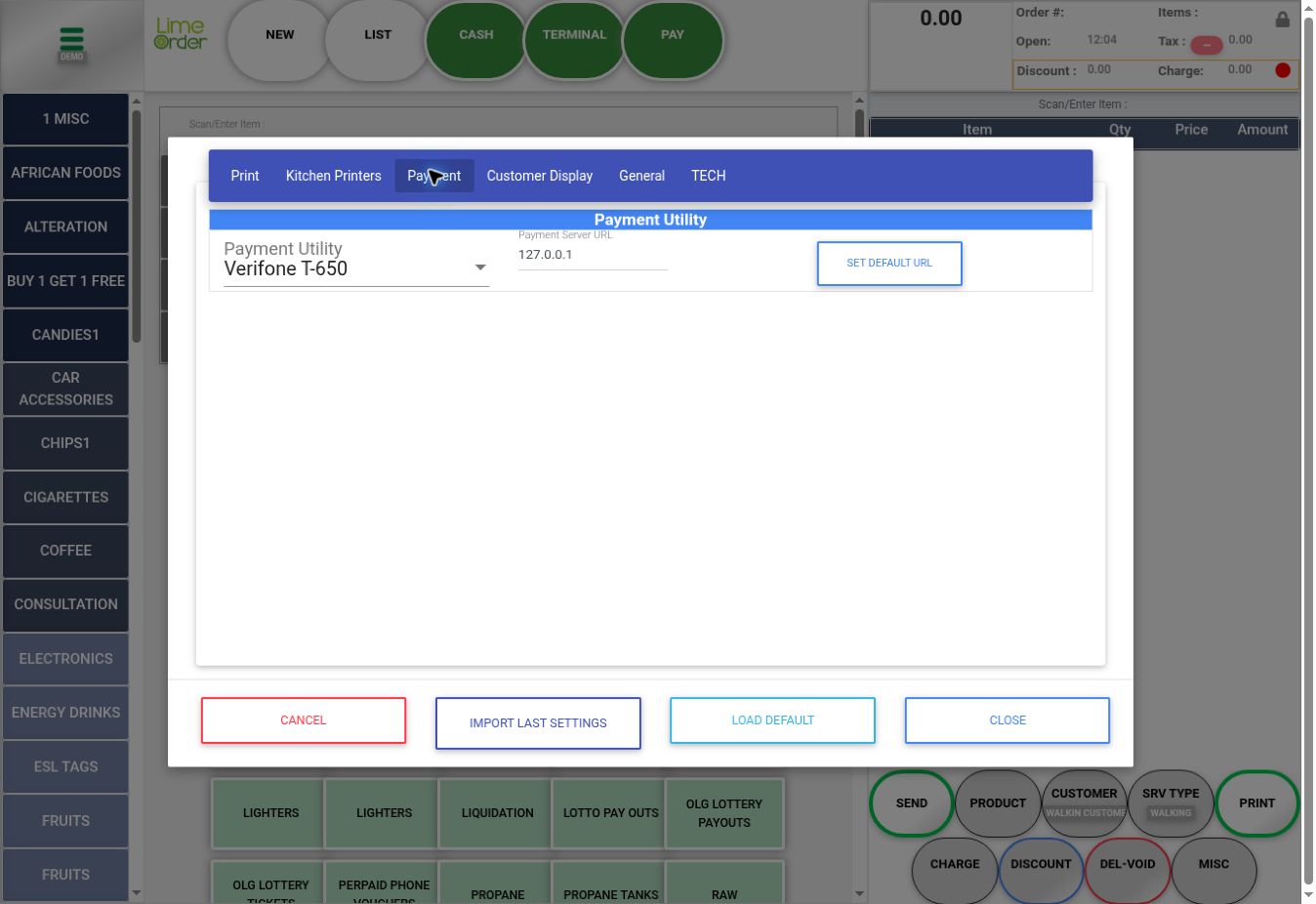
344. Review Payment #
Choose Payment. Review Payment Utility and Payment Server URL. SET DEFAULT URL supplies the device’s default server setting. Use the values appropriate for your installed payment integration.
 45
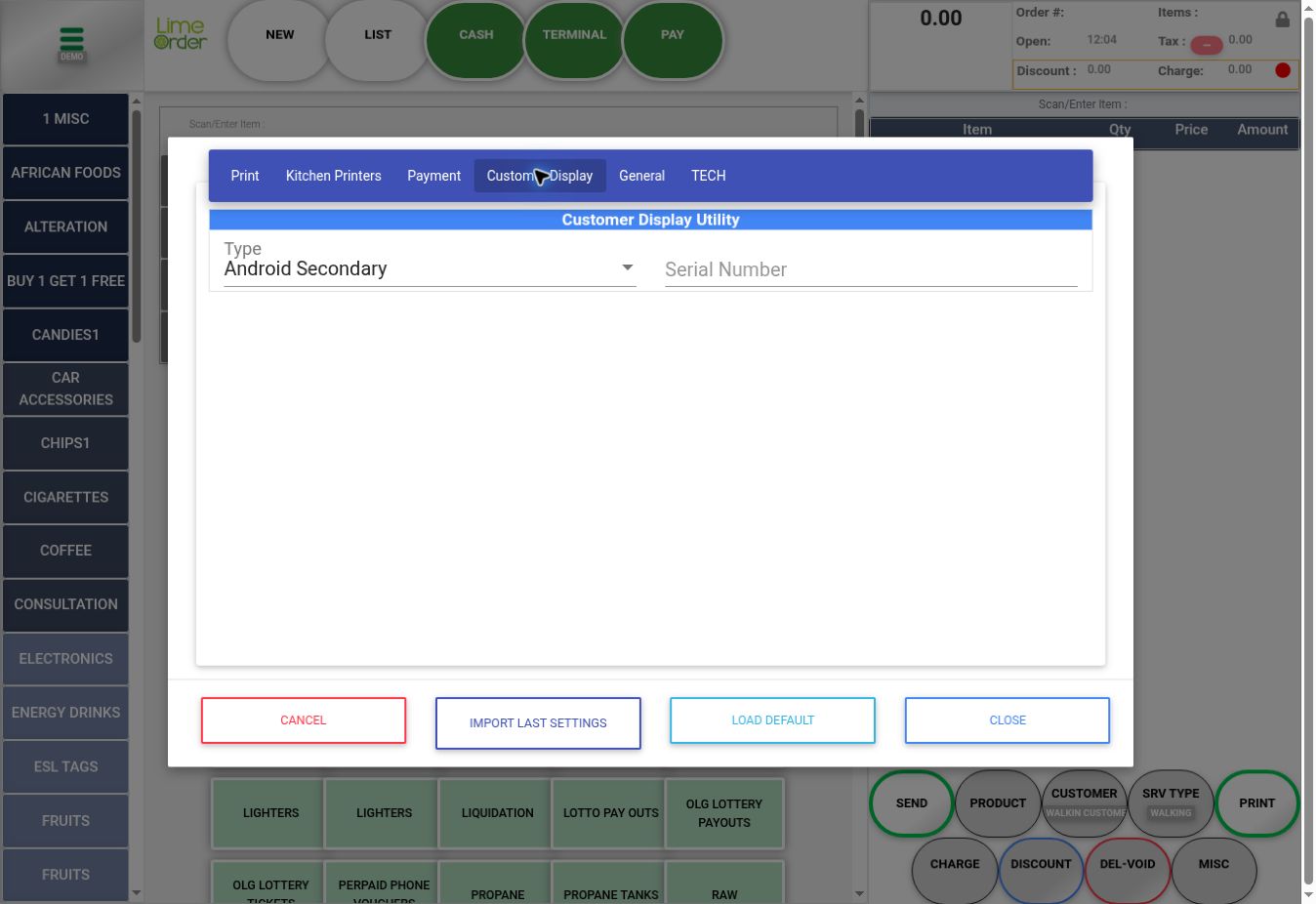
455. Review Customer Display #
Choose Customer Display. Review Type and Serial Number for the customer-facing display. The example uses Android Secondary with an empty serial number.
 56
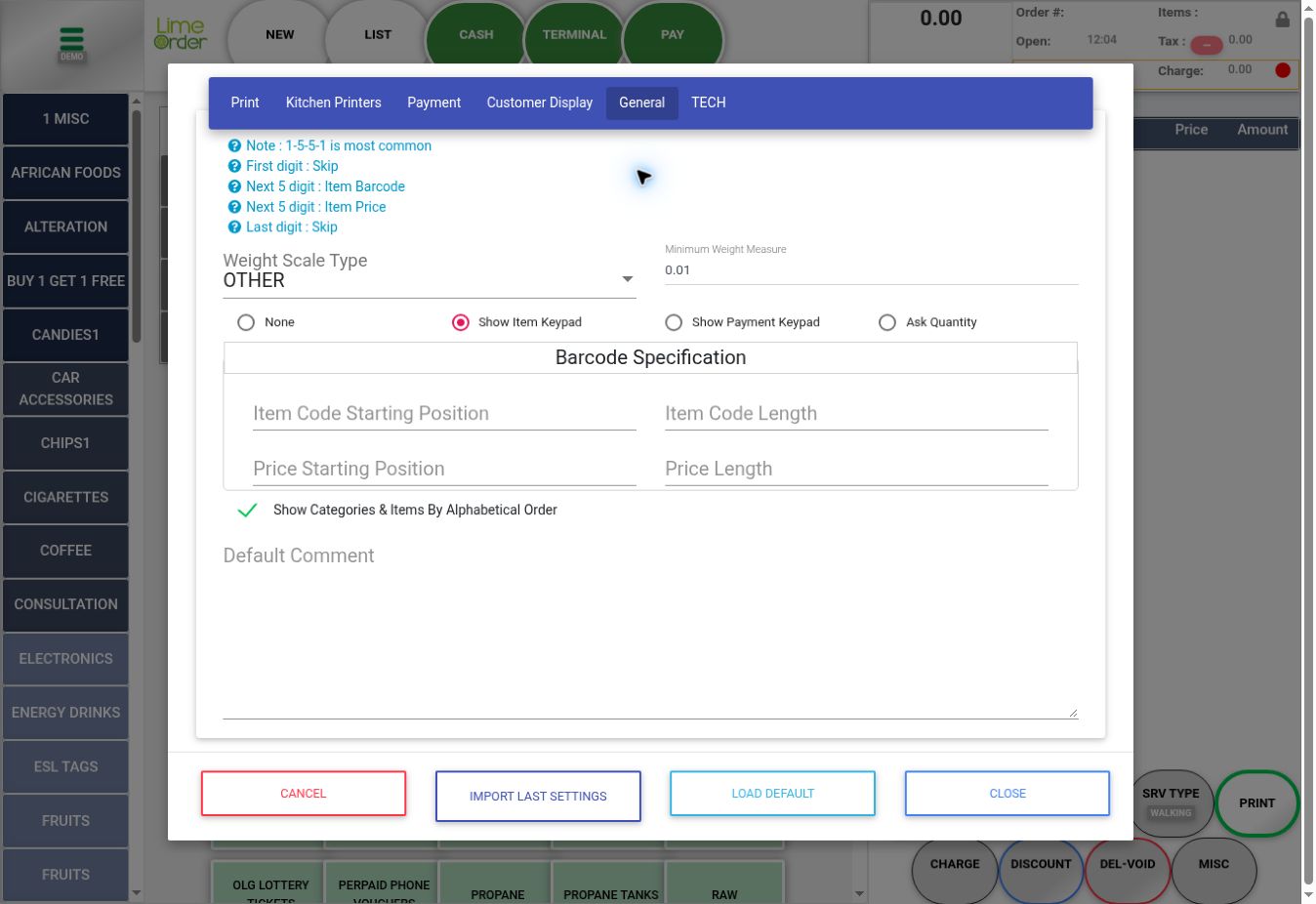
566. Review General #
Choose General. Review Weight Scale Type, Minimum Weight Measure, and the input behavior options None, Show Item Keypad, Show Payment Keypad, and Ask Quantity. Barcode Specification has Item Code Starting Position, Item Code Length, Price Starting Position, and Price Length. The tab also provides alphabetical category/item ordering and Default Comment. The displayed 1-5-5-1 barcode note explains skipped digits, item barcode, and embedded item price.
 67
677. TECH access and bottom controls #
TECH requests a separate password before settings can be edited; its contents were not inspected. At the bottom of the accessible tabs, CANCEL, IMPORT LAST SETTINGS, LOAD DEFAULT, and CLOSE are available. IMPORT LAST SETTINGS and LOAD DEFAULT replace configuration values, so use them only for the intended setup or recovery task. The captures were made without changing settings.
78910Check the result #
Check the intended tab, device, and integration before changing values. Do not copy demonstration URLs or device identifiers as production configuration.


