

User roles and users #
POS Admin • Screenshots show example records. Select any screenshot to enlarge it.
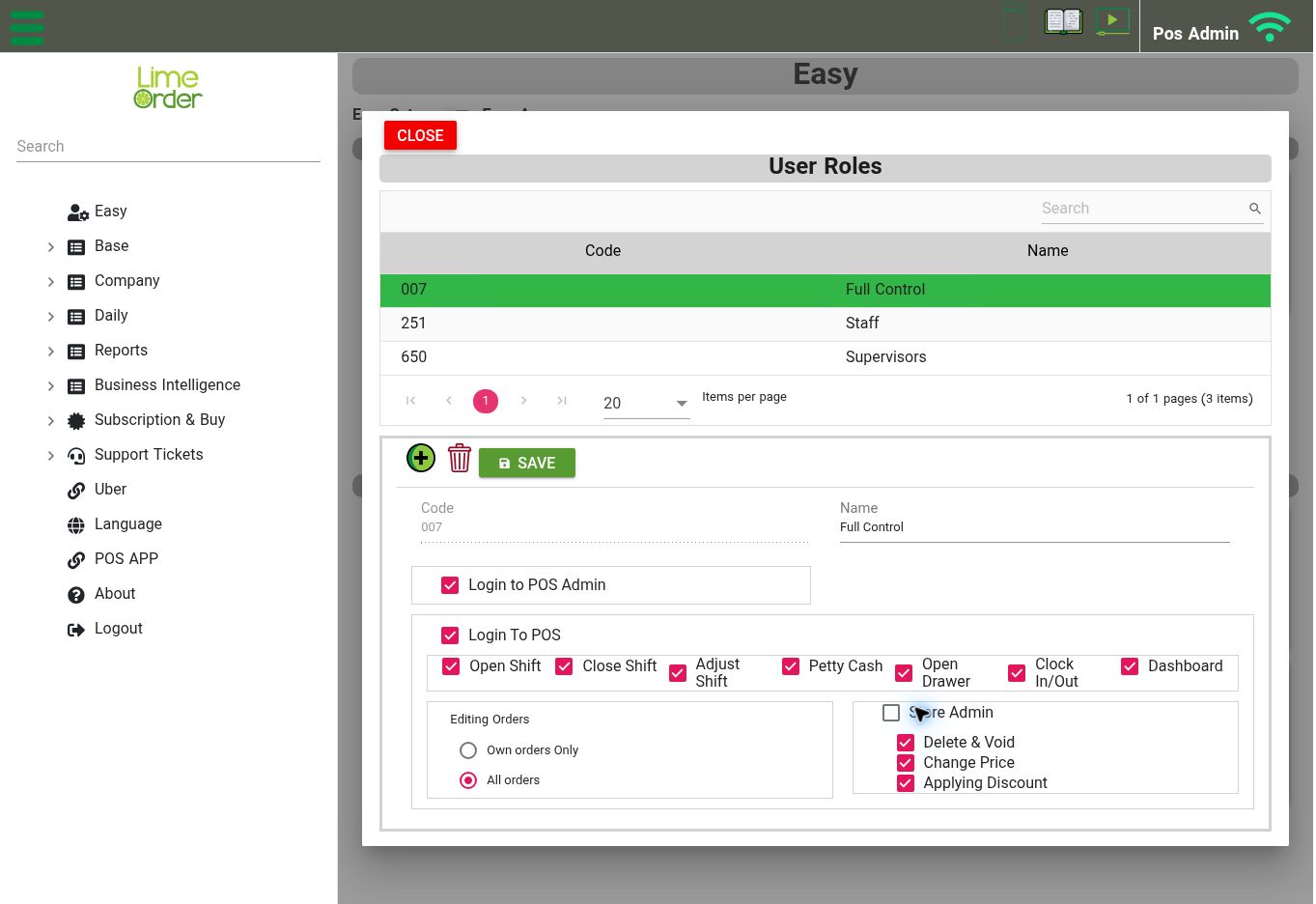
User Roles: review login permissions, shift actions, order editing, and discount permissions before assigning a role. View full-size screenshot
Set up a role #
Open: Easy → Users → User Roles
- Select the role you want to review, or use Add/New to create a role.
- Set the role’s Name.
- Review the permissions and order-editing scope.
- Select Save.
The role form includes Login to POS Admin, Login To POS, Open Shift, Close Shift, Adjust Shift, Petty Cash, Open Drawer, Clock In/Out, and Dashboard.
Editing Orders offers Own orders Only or All orders. Other controls include Store Admin, Delete & Void, Change Price, and Applying Discount. Assign permissions according to the staff member’s responsibilities.
Assign a user #
Open: Easy → Users → Users
- Select the user, or use Add/New.
- Choose the user’s Roles and review Name and Email(Login Name).
- Review the appropriate sign-in settings: POS Admin password and POS PIN Code are separate fields. Staff Booking also has its own password field.
- Under Has Access To, choose All Locations or Single Location and review the location selection.
- Review other relevant fields, including Email CC, Hourly Salary, Overtime Salary, and Booking Color.
- Select Save.
Use individual staff accounts where appropriate. Keep passwords and PINs private. A user’s role determines which actions they are allowed to perform.


