

Add a New Customer #
Common POS · Shared procedures for retail, restaurant, and salon devices. Button availability follows your device configuration and permissions. Red numbered boxes identify the controls used in each step.
1. Open CUSTOMER, then NEW #
From Sales, press CUSTOMER. In the lookup, press NEW at the upper left.
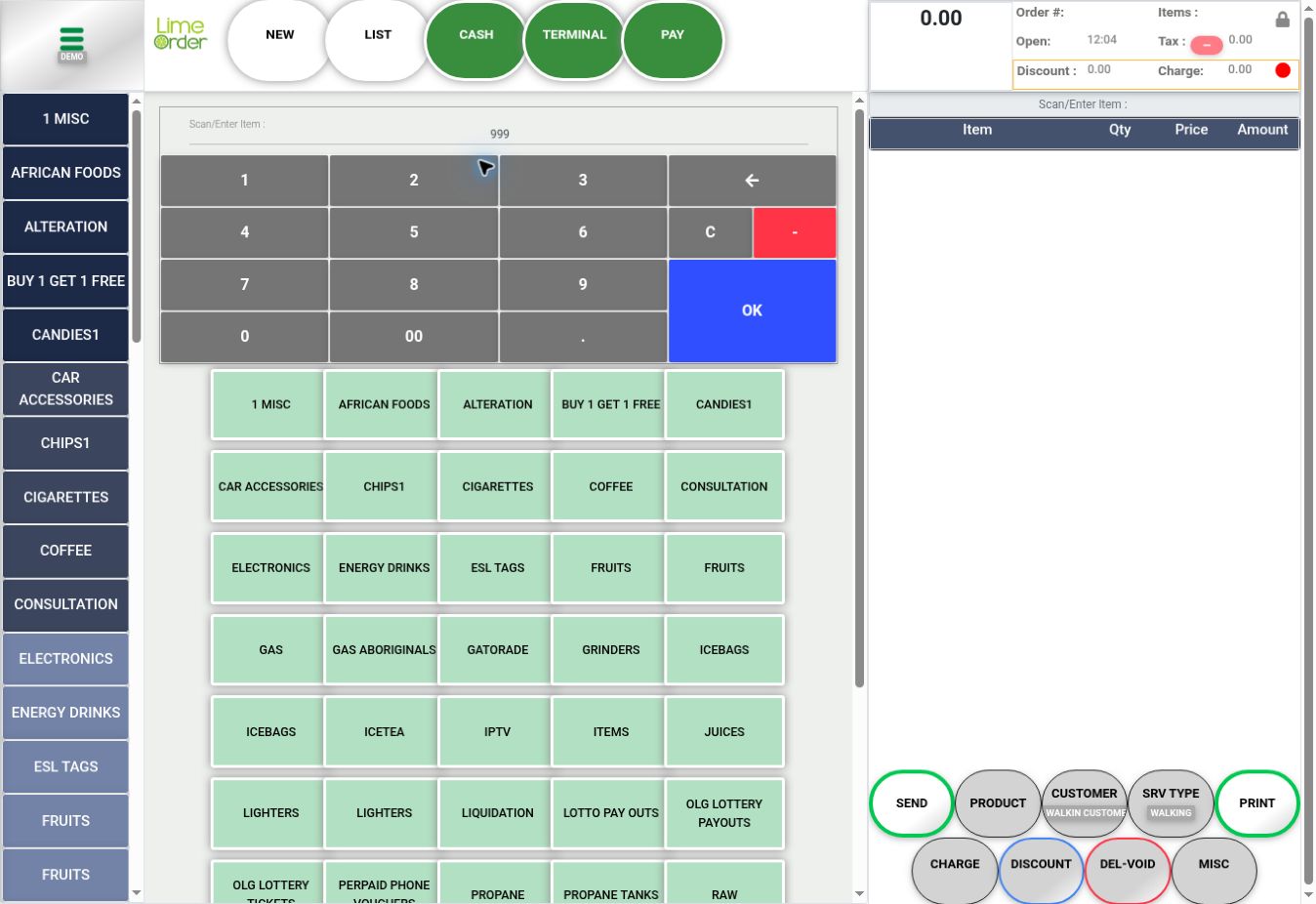 1
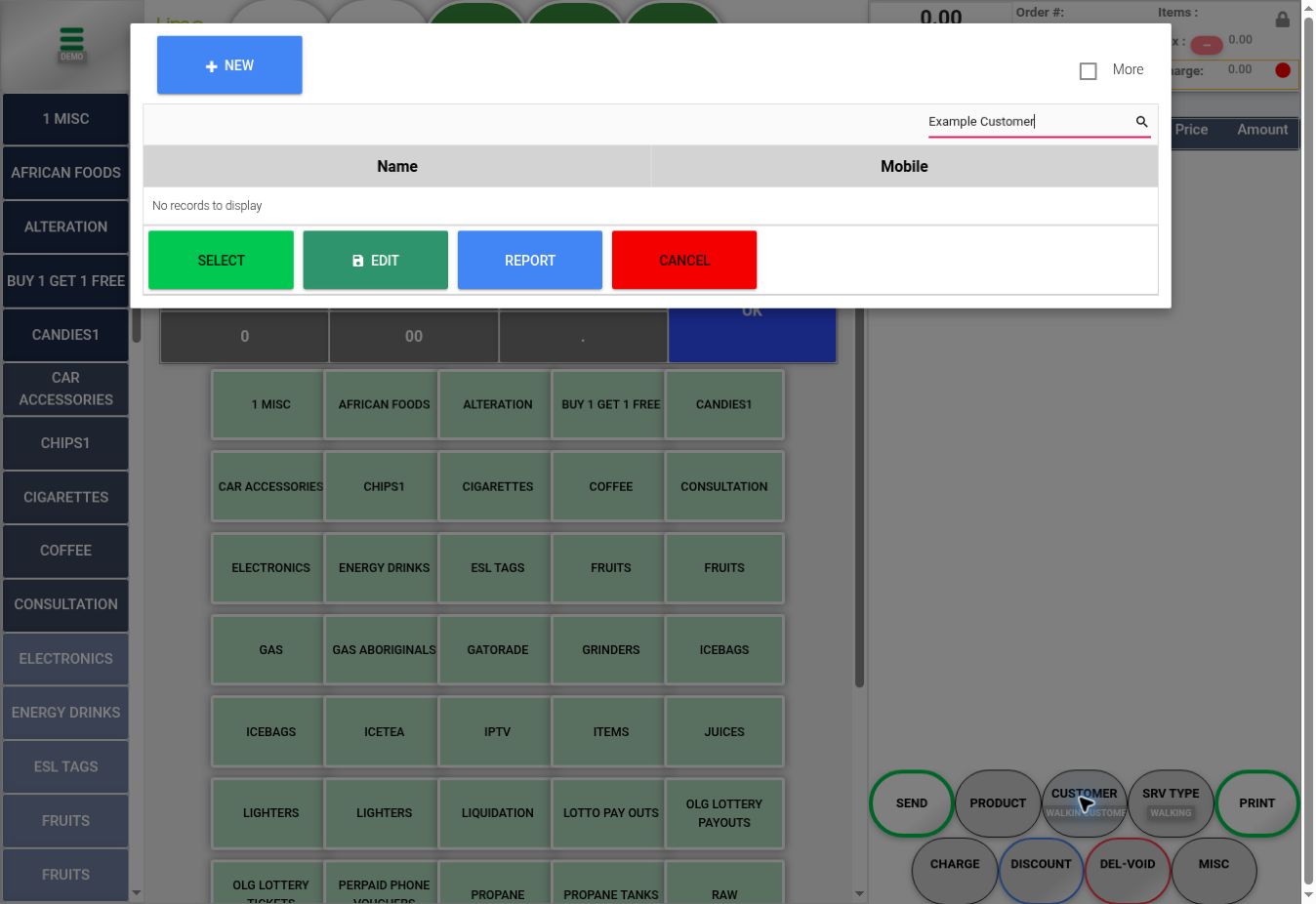 1
2. Enter identity and contact details #
The Info tab opens. Enter Name, choose Group, and add the provided Mobile, Phone, and Email when needed. Review the customer Code.
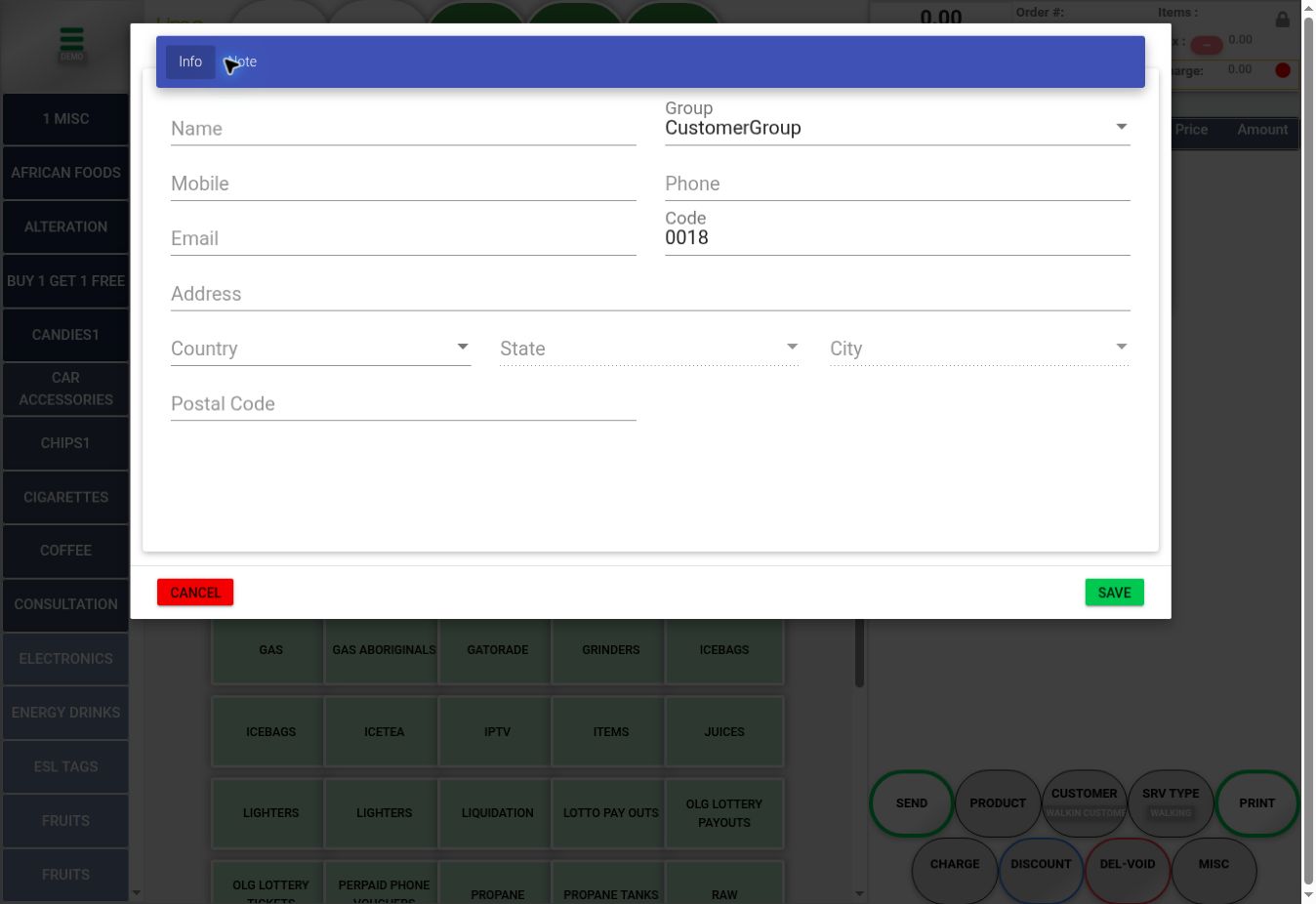 2
3. Enter address details and optional notes #
Enter Address, select Country, then State and City as available, and enter Postal Code. State and City were disabled until their preceding context was set. The Note tab is available for customer notes.
344. Press SAVE or CANCEL #
Check the entered details, then press SAVE at the bottom right. CANCEL at the bottom left discards an unfinished entry. Return to lookup and use SELECT if needed to attach the intended customer to the invoice.
45Check the result #
Confirm the customer on the Sales form. The illustration uses an empty form and no customer was created during capture.