

Table of Contents
POS, kiosk, and KDS settings #
POS Admin • Screenshots show example records. Select any screenshot to enlarge it.
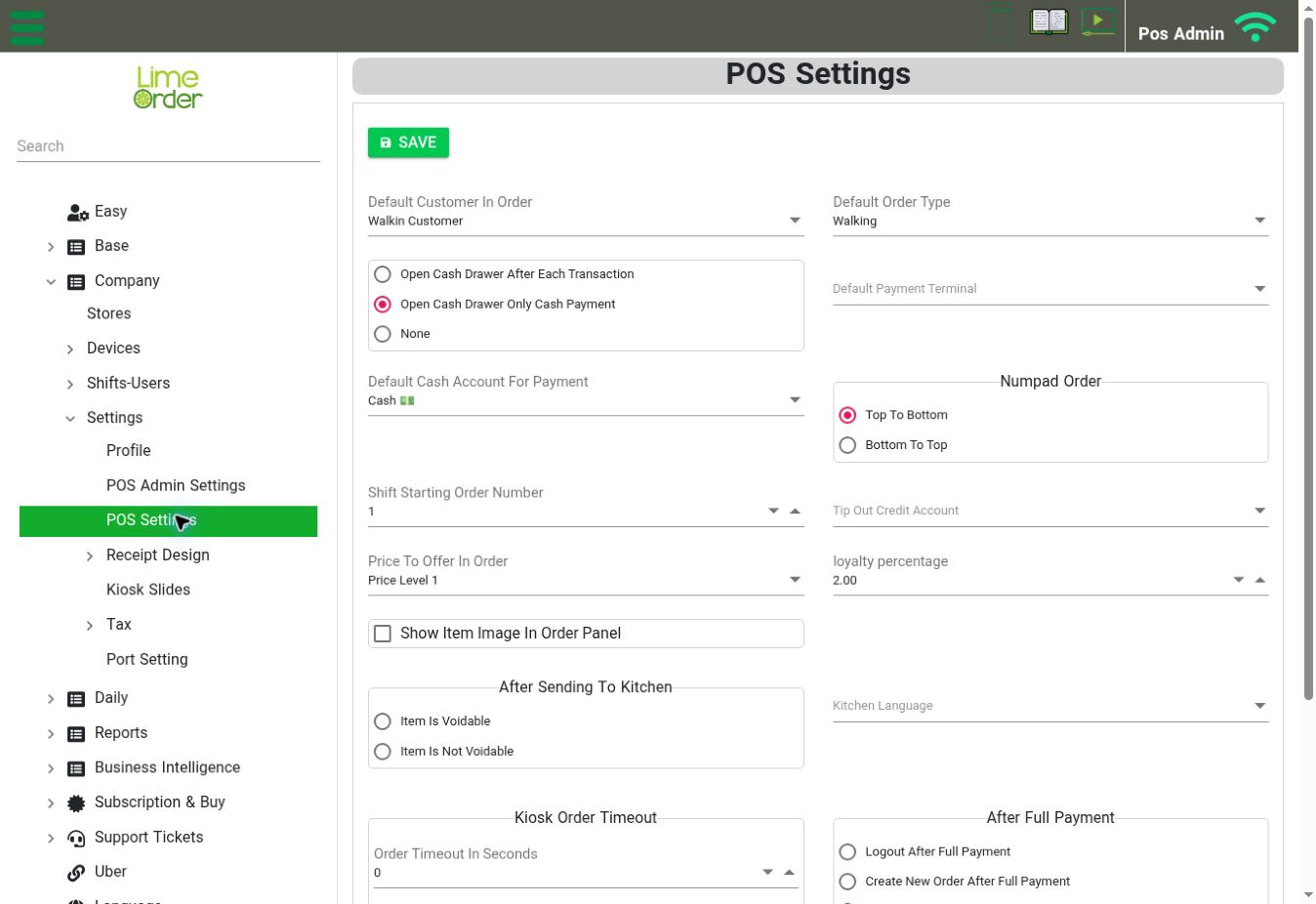
POS Settings: review order defaults, cash drawer behavior, payment defaults, and Price To Offer In Order. View full-size screenshot
Open: Company → Settings → POS Settings
This screen controls common ordering behaviour. Review the settings required for your installation, then select Save.
| Area | Controls on the screen |
|---|---|
| Order defaults | Default Customer In Order, Default Order Type, Price To Offer In Order, Shift Starting Order Number, and Show Item Image In Order Panel. |
| Cash drawer | Open Cash Drawer After Each Transaction, Open Cash Drawer Only Cash Payment, or None. |
| Payment defaults | Default Payment Terminal, Default Cash Account For Payment, and Tip Out Credit Account. |
| Other order settings | Numpad Order and loyalty percentage. |
| Kitchen | After Sending To Kitchen: Item Is Voidable or Item Is Not Voidable; Kitchen Language. |
| Kiosk Order Timeout | Order Timeout In Seconds and Alert Duration In Seconds. |
| After Full Payment | Logout After Full Payment, Create New Order After Full Payment, or None. |
| KDS Preparation Time | Short Delay (Second) and Late (Second). |
| KDS Serve Time | Short Delay (Second) and Late (Second). |
Match kitchen and KDS timing values to your operation. After changing order behaviour, check a sample workflow on the appropriate device. The Settings menu also includes Profile, POS Admin Settings, Receipt Design, Kiosk Slides, Tax, and Port Setting.


