

Table of Contents
Tax configuration #
POS Admin • Screenshots show example records. Select any screenshot to enlarge it.
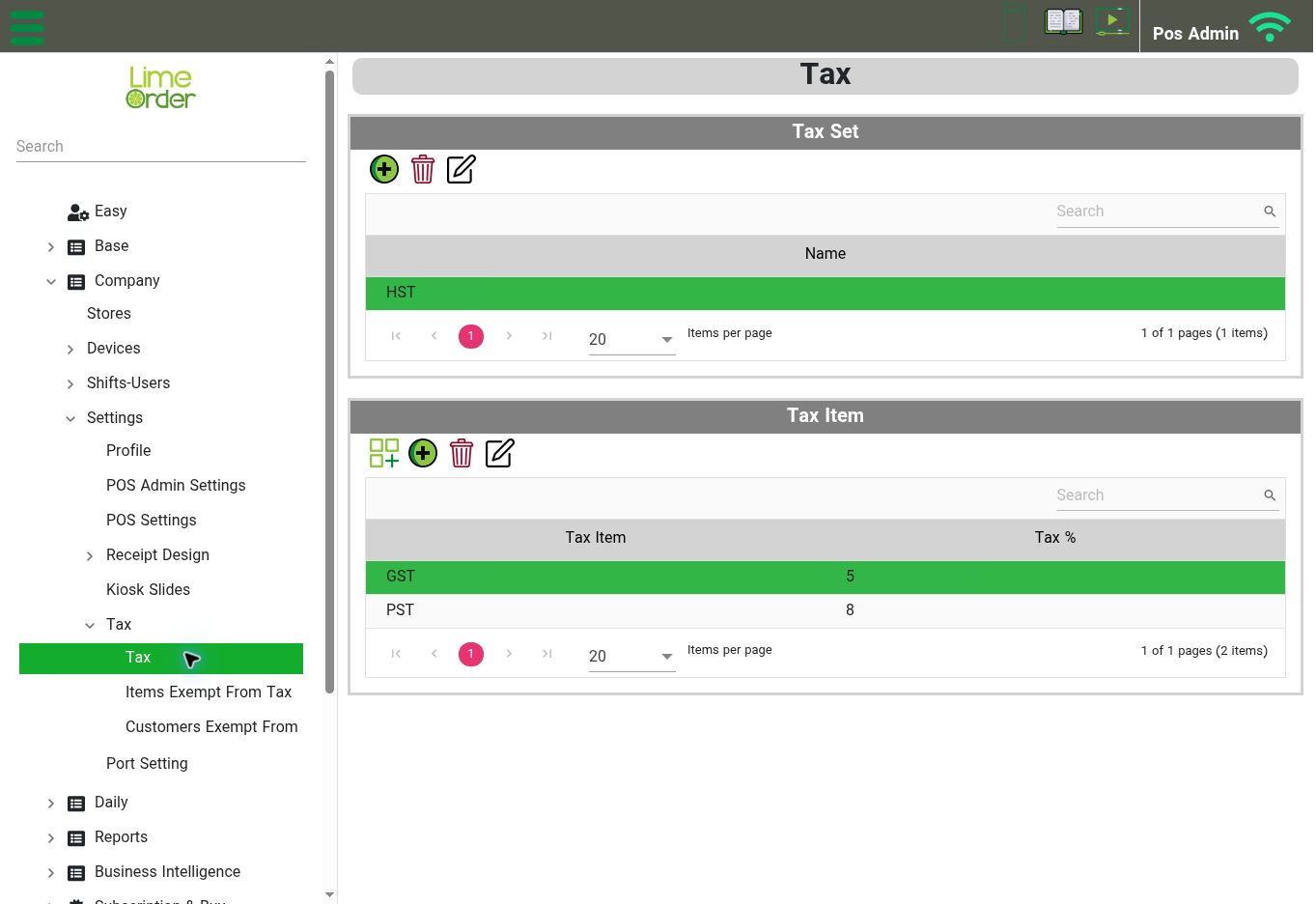
Select a Tax Set to review its Tax Items. The values shown are examples from this account, not recommended rates. View full-size screenshot
Open: Company → Settings → Tax → Tax
The Tax screen contains a Tax Set list and a Tax Item list. Tax items are shown with their Tax %. Select the tax set before reviewing its associated tax items.
- Review the appropriate Tax Set.
- Use the available Add/New or Edit controls to maintain the required tax configuration.
- Check the store’s Default Tax Set under Company → Stores.
- Review item-specific exemptions in the item form and the exemption screens when applicable.
- Check a sample receipt to confirm the resulting calculation.
The Tax branch also includes Items Exempt From Tax and Customers Exempt From Tax. Use the tax rates and exemptions applicable to your business; this guide describes the interface and does not prescribe rates.


