

Open the Side Menu and Home #
Common POS · Shared procedures for retail, restaurant, and salon devices. Button availability follows your device configuration and permissions. Red numbered boxes identify the controls used in each step.
1. Press the three-bar menu #
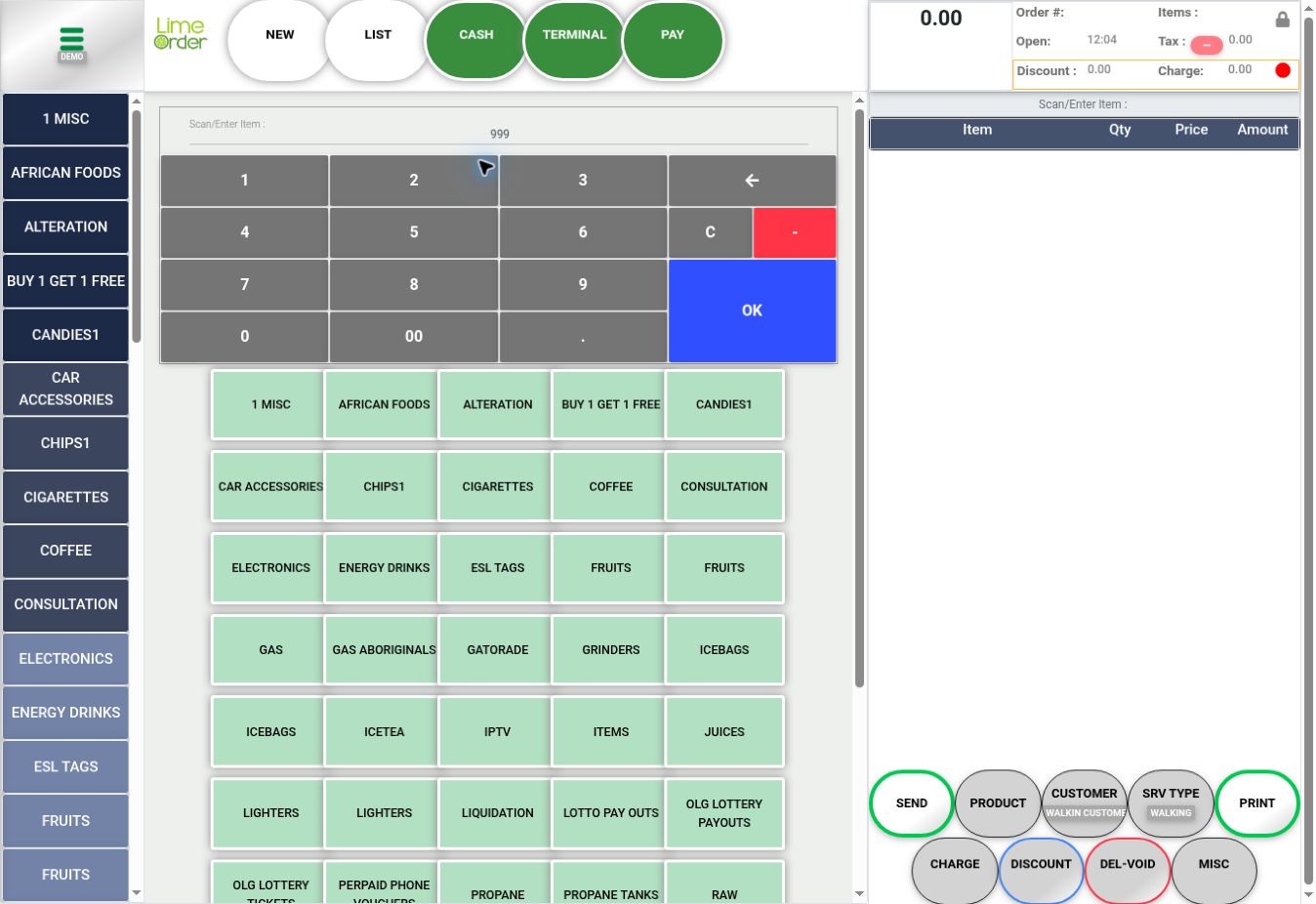
On the Sales form, press the green three-bar menu at the top left.
 1
12. Choose Home or another destination #
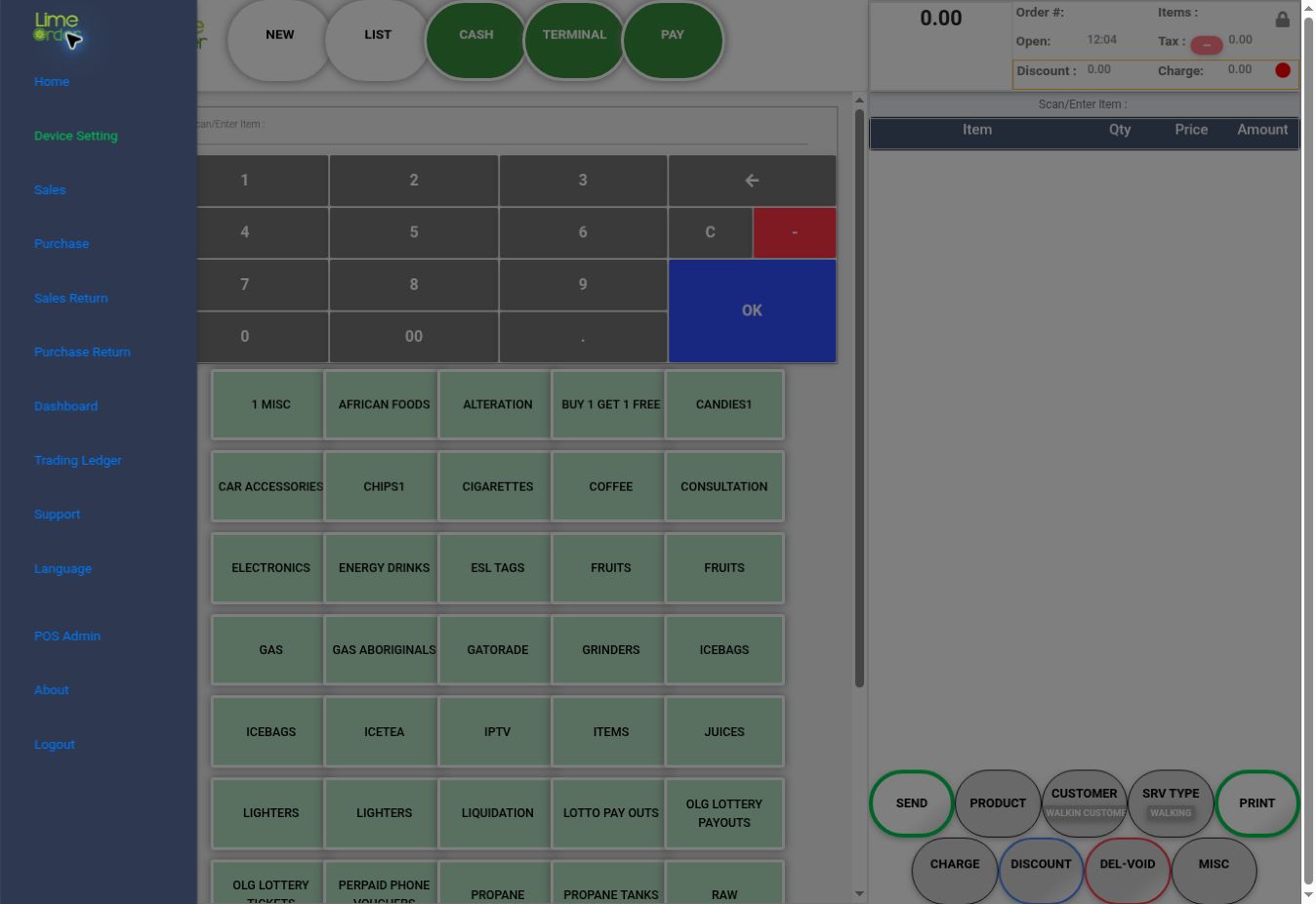
The side menu opens. Choose Home for daily tasks, Device Setting for local hardware and behavior, or Sales to return to invoicing. Other entries are Purchase, Sales Return, Purchase Return, Dashboard, Trading Ledger, Support, Language, POS Admin, About, and Logout.
 23
233. Choose the Home task #
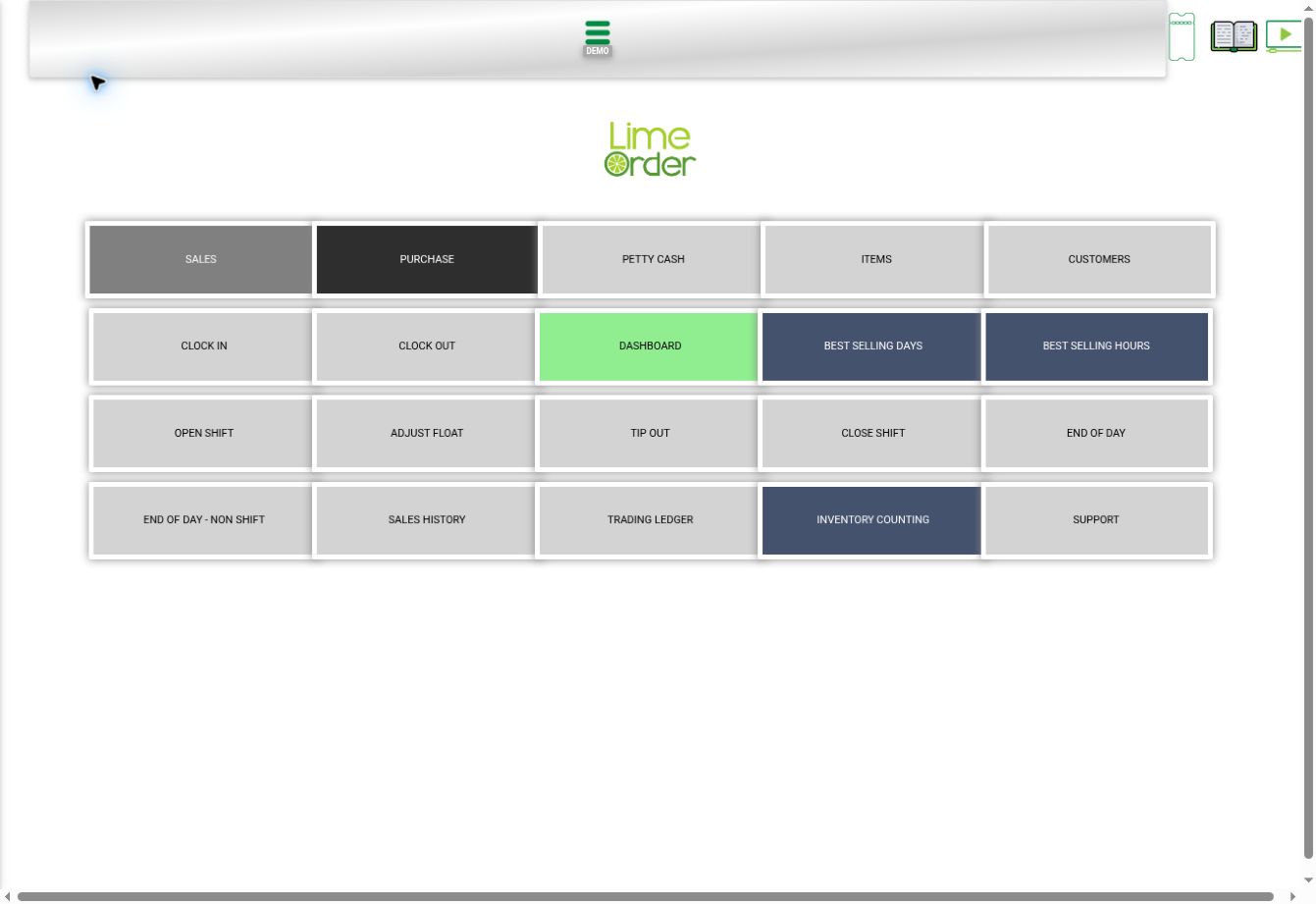
Home provides Sales, Purchase, Petty Cash, Items, Customers, Clock In, Clock Out, Dashboard, Best Selling Days, Best Selling Hours, Open Shift, Adjust Float, Tip Out, Close Shift, End of Day, End of Day – Non Shift, Sales History, Trading Ledger, Inventory Counting, and Support.
 3
3Check the result #
Open End of Day, Dashboard / accounting report, Open Shift, Close Shift, Clock In, or Clock Out for the corresponding marked sequence. Device Settings has its own tab-by-tab guide.


