

Sign in and find your way around #
POS Admin • Screenshots show example records. Select any screenshot to enlarge it.
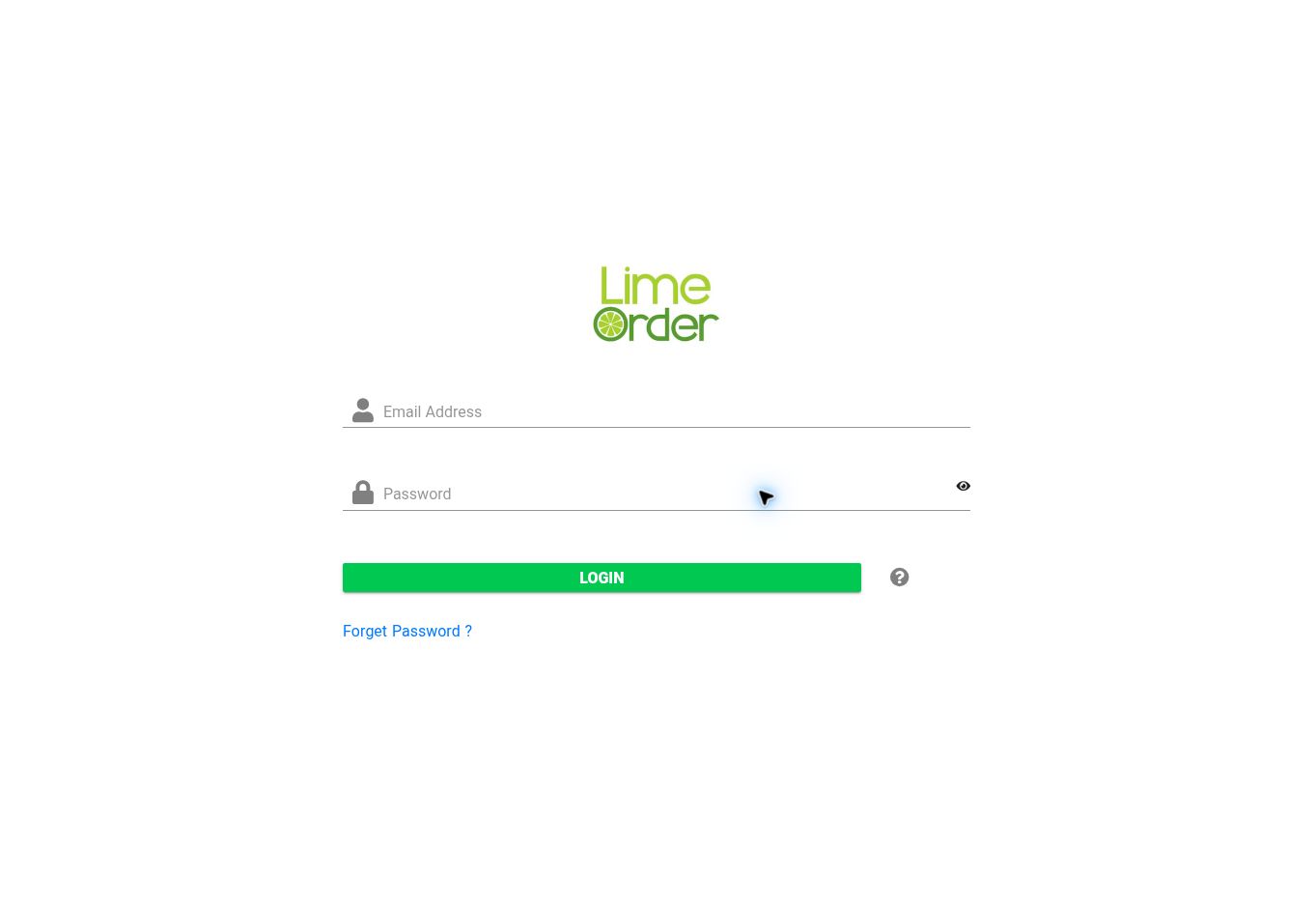
Sign-in screen: enter your own email address and password, then select Login. View full-size screenshot
- Open POS Admin in your browser.
- Enter your Email Address and Password.
- Select Login.
- If you cannot remember your password, select Forget Password ? on the sign-in screen and follow the recovery instructions.
After login, the left sidebar contains the main navigation. Select a section to reveal its child menus. The Search field at the top of the sidebar helps you find menu entries. The top bar also includes chat, User Manual, and Video.
| Section | What you will find |
|---|---|
| Easy | Shortcuts to Menu & Products, Dashboard, inventory counting, Modifiers, Stores, Ordering Devices, Payment Terminals, Kitchen Printers, users, roles, and receipts. |
| Base | Groups, Items, Businesses, Payments, Misc, Accounting, and Inventory Counting. The Items branch includes Items, Modifiers, Services, Units, and Warehouses. |
| Company | Stores, Devices, Shifts-Users, and Settings. |
| Daily | Item Level Promotions, Currency Equality, and Attendance. |
| Reports | Daily Report, Items, Lists, User/Employee, and Customer Statement. |
| Business Intelligence | Sales and Purchase analysis branches. |
| Other sidebar entries | Subscription & Buy, Support Tickets, Uber, Language, POS APP, About, and Logout. |
The Easy page shows an Easy Setup / Easy Access switch and pencil buttons beside the available shortcuts. Select the pencil beside a task to open it. Shortcut windows use Close to return to the Easy page.
Working with lists and forms #
Many screens have a record list and a detail form. Select the record you want before editing its details. Use the list’s search field and page controls when available. Add/New, Edit, Delete, and Save may appear as icon buttons. Product and modifier editors can include a Cancel button to leave without saving.
When a form has a Save button, use it to apply your changes. Before leaving a screen, check that you selected the intended record and saved the intended fields. Select Logout in the sidebar when finished.


