

Open PAY and Record a Payment #
Common POS · Shared procedures for retail, restaurant, and salon devices. Button availability follows your device configuration and permissions. Red numbered boxes identify the controls used in each step.
1. Verify invoice and press PAY #
Review the invoice and customer, then press PAY at the top of Sales.
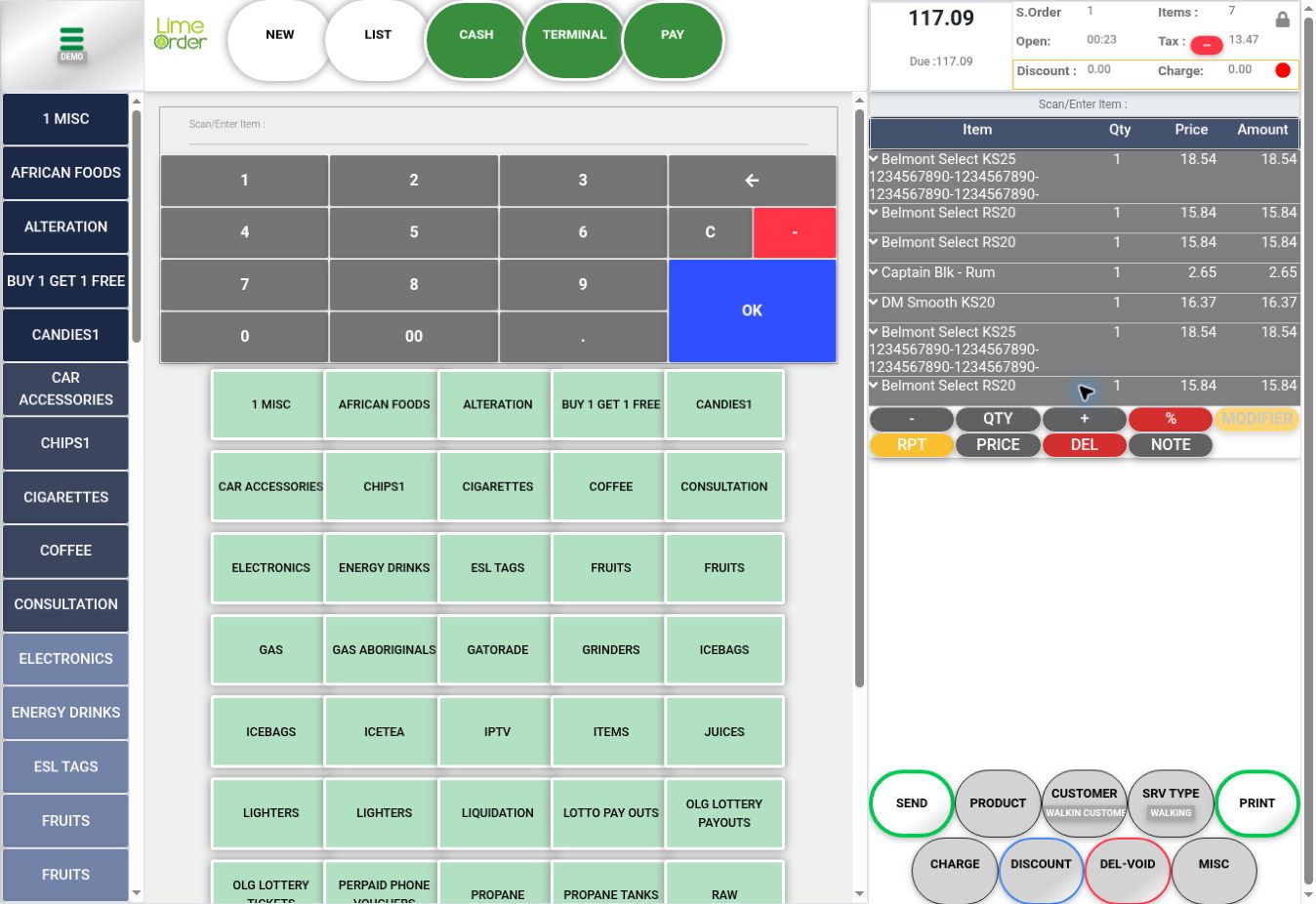 1
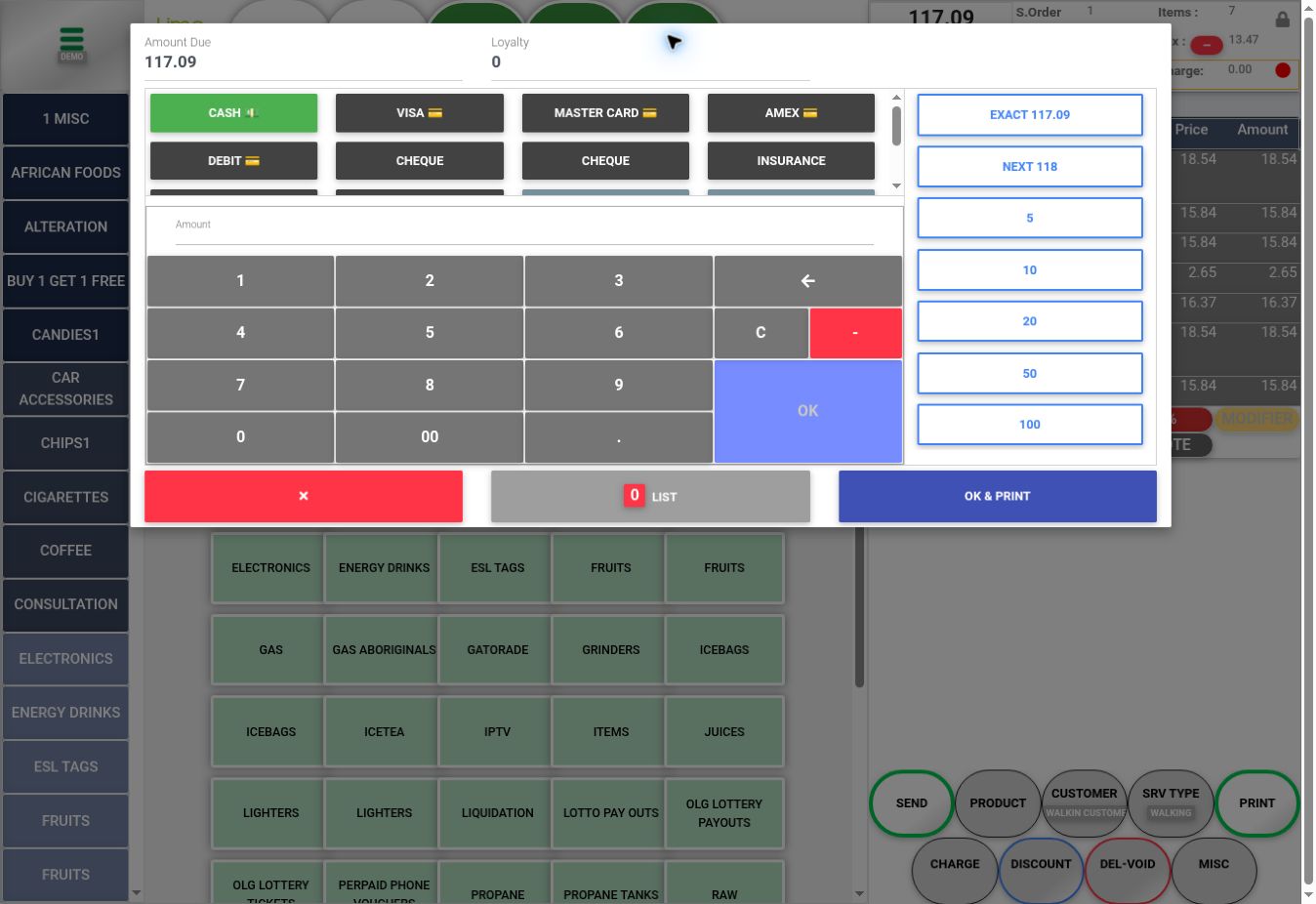
12. Check Amount Due and tender #
The payment dialog opens. Read Amount Due, then choose the tender used by the customer. Enabled tenders follow your device configuration; the example shows cash and card types.
 23
233. Enter the amount #
Use the Amount field and keypad or the configured shortcuts. EXACT shows the current due amount; NEXT and denomination buttons are also shown. Review the tender and amount before confirming payment with the applicable OK control.
3454. Review recorded payments and receipt option #
LIST displays a count and opens recorded payments when available. See Delete a Recorded Payment for correction steps. OK & PRINT is the receipt-related confirmation option; the red X closes the dialog.
456Check the result #
Check payment status and remaining Due before retrying or starting another invoice. A saved-invoice message is not a payment confirmation.


