

Table of Contents
Item-level promotions #
POS Admin • Screenshots show example records. Select any screenshot to enlarge it.
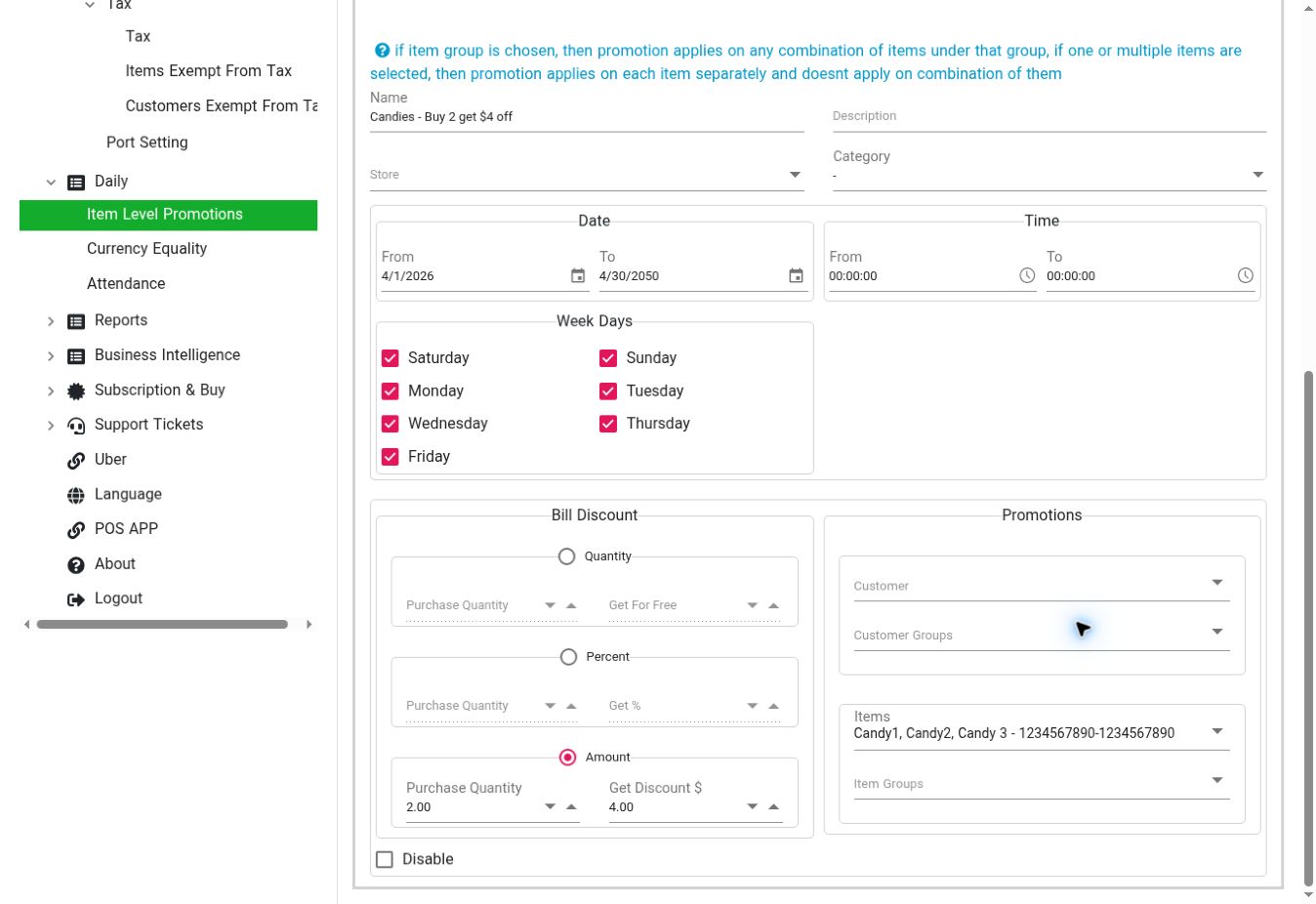
Promotion form: configure dates, weekdays, a discount method, and eligible items or groups. View full-size screenshot
Open: Daily → Item Level Promotions
- Use the Status filter and list search to find an existing promotion, or use Add/New to create one.
- Review Name, Description, Store, and Category.
- Set the date range, time range, and applicable Week Days.
- Choose the discount method and enter the associated purchase quantity and benefit.
- Review the Customer, Customer Groups, Items, and Item Groups selections.
- Review the Disable checkbox, then save.
- Check qualifying and non-qualifying sample orders on the POS.
| Method | Fields |
|---|---|
| Quantity | Purchase Quantity and Get For Free. |
| Percent | Purchase Quantity and Get %. |
| Amount | Purchase Quantity and Get Discount $. |
Important promotion rule shown in the app: selecting an item group applies the promotion to combinations of items under that group. Selecting individual items applies it to each item separately, rather than a combination of different selected items.
For example, choose a group when customers may mix products from that group to qualify. Check dates, weekdays, store, and qualifying items if a promotion does not apply as expected.


