

Table of Contents
Modifier groups and choices #
POS Admin • Screenshots show example records. Select any screenshot to enlarge it.
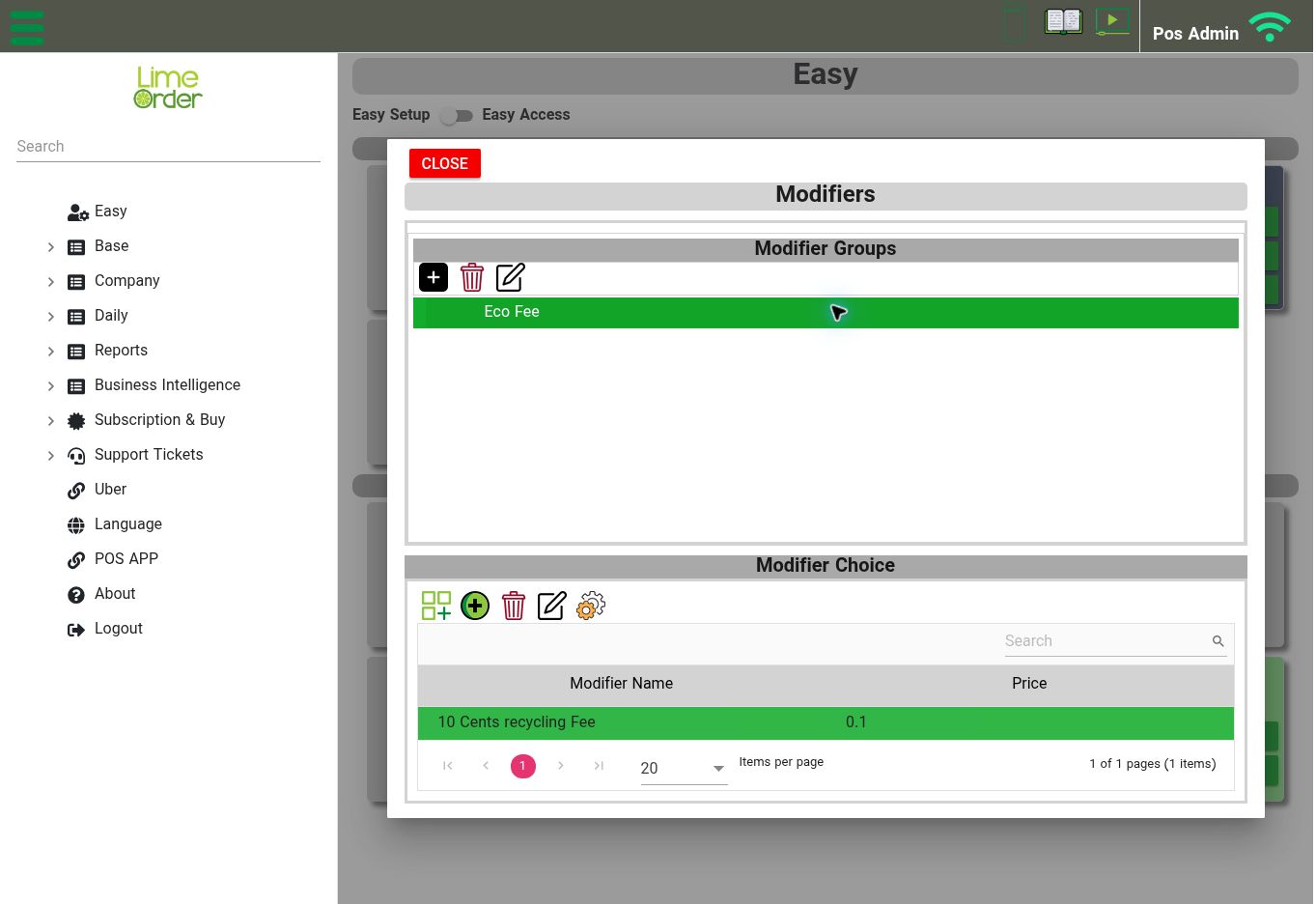
Select a Modifier Group to review the Modifier Choice list and each choice’s price. View full-size screenshot
Open: Easy → Modifiers, or Base → Items → Modifiers
The Modifiers screen separates Modifier Groups from Modifier Choice. The choice list shows Modifier Name and Price.
- Create a modifier group using the group Add/New control. Give it a clear name and save it.
- Select the group.
- Use the choice controls to add an existing choice or create a new choice. Use Edit to review an existing choice.
- Return to the main product’s item editor.
- Under General → Modifier Groups, add the relevant group to the product and save the item.
For a restaurant, useful group names might be “Milk choice,” “Add-ons,” or “Cooking preference.” Set each choice’s price according to your menu. A modifier group must be attached to the relevant product for that product’s configuration.


