

Dashboard and Accounting Report #
Common POS · Shared procedures for retail, restaurant, and salon devices. Button availability follows your device configuration and permissions. Red numbered boxes identify the controls used in each step.
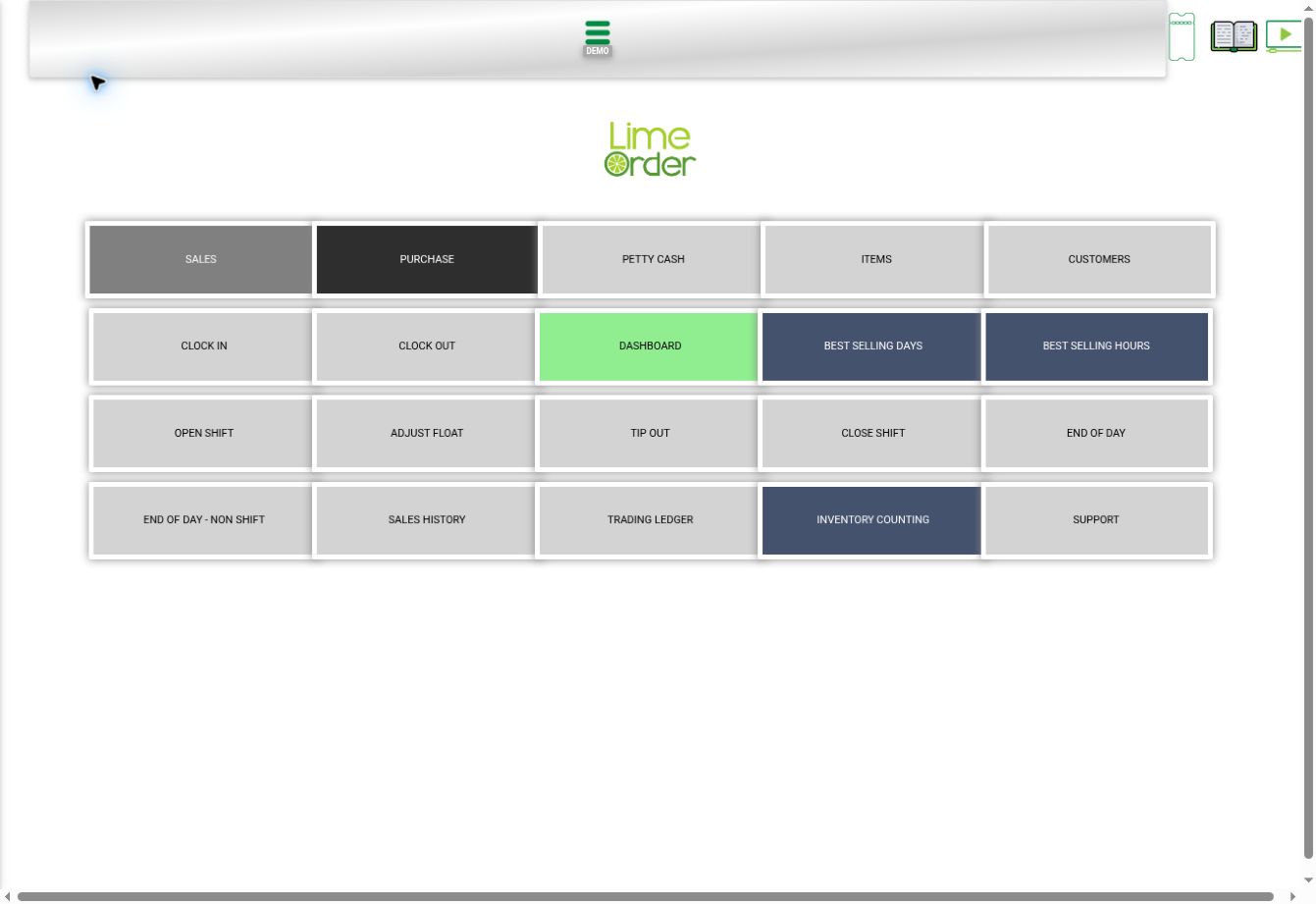
1. Open Home and press DASHBOARD #
Use the side menu → Home, then choose DASHBOARD. Dashboard is also available directly in the side menu.
 1
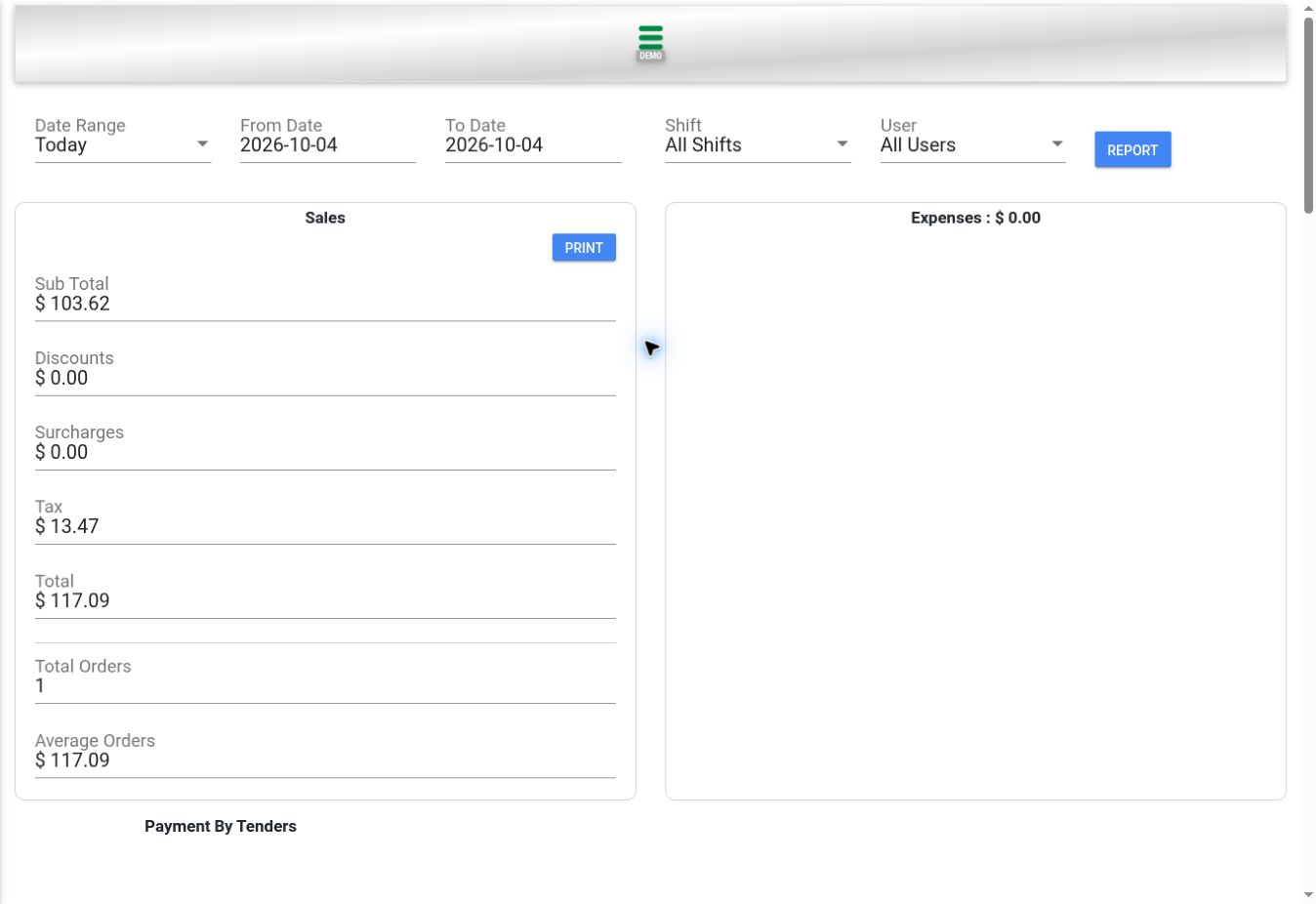
12. Choose date, shift, and user #
Choose Date Range or From / To Date, select Shift and User, then press REPORT.
 23
233. Read sales and accounting totals #
The dashboard summarizes Sub Total, Discounts, Surcharges, Tax, Total, Total Orders, and Average Orders. It also shows Expenses and Payment By Tenders. PRINT is available in Sales.
344. Review the remaining sections #
Scroll down for 10 Best Selling Items, item and item-group charts, Lotto Sales where configured, Sales By Shifts, Sales By Devices, Sales By Operators, and discount/surcharge charts. This screen is the POS dashboard/accounting summary; detailed ledger review is available through Trading Ledger.
Check the result #
Check date, shift, and user before comparing totals. The illustration shows the existing demonstration invoice, not a completed payment.


