

Inventory Counting Workspace #
Common POS · Shared procedures for retail, restaurant, and salon devices. Button availability follows your device configuration and permissions. Red numbered boxes identify the controls used in each step.
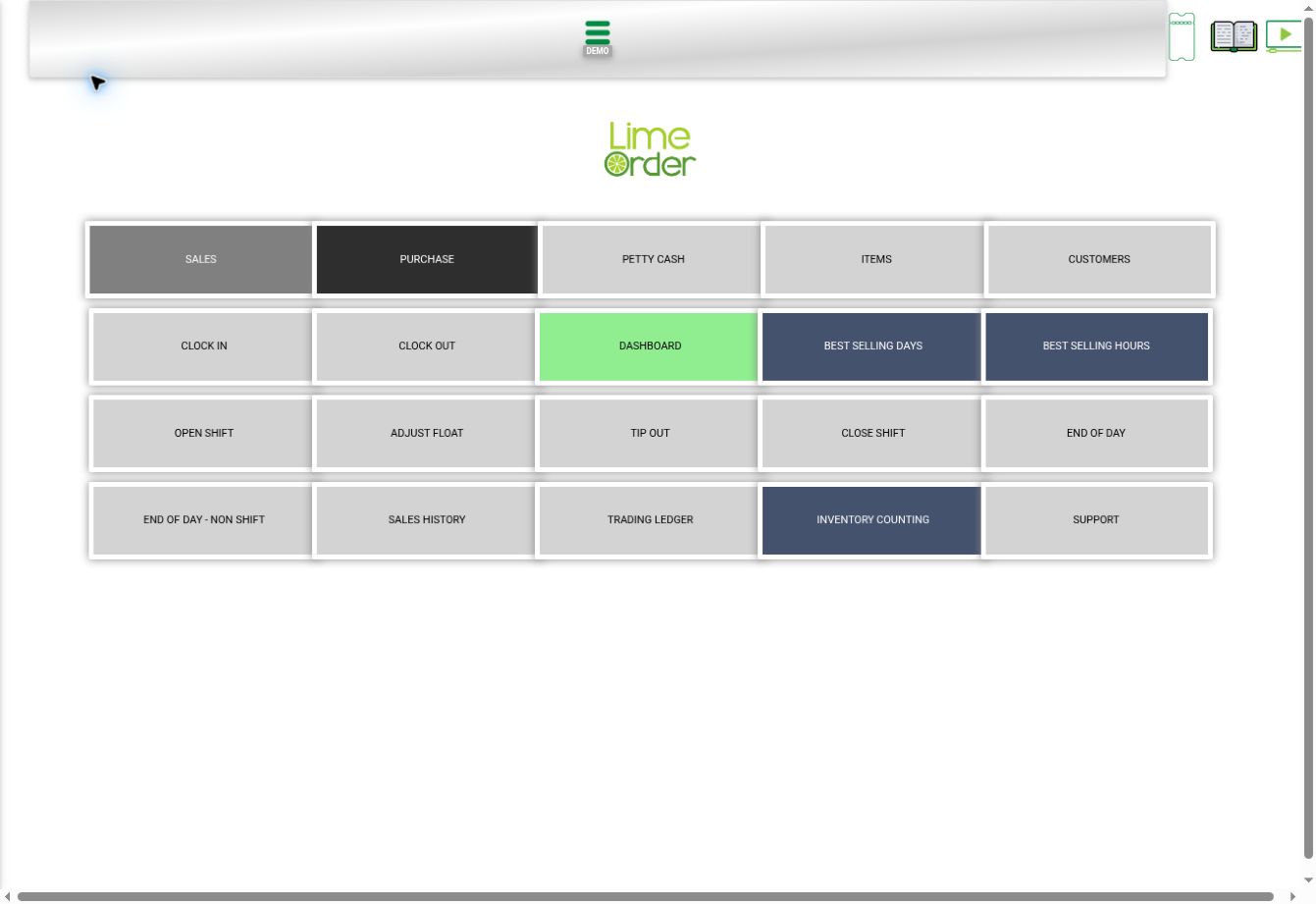
1. Open Home and choose INVENTORY COUNTING #
Go to Home and press INVENTORY COUNTING.
 1
12. Set the counting context #
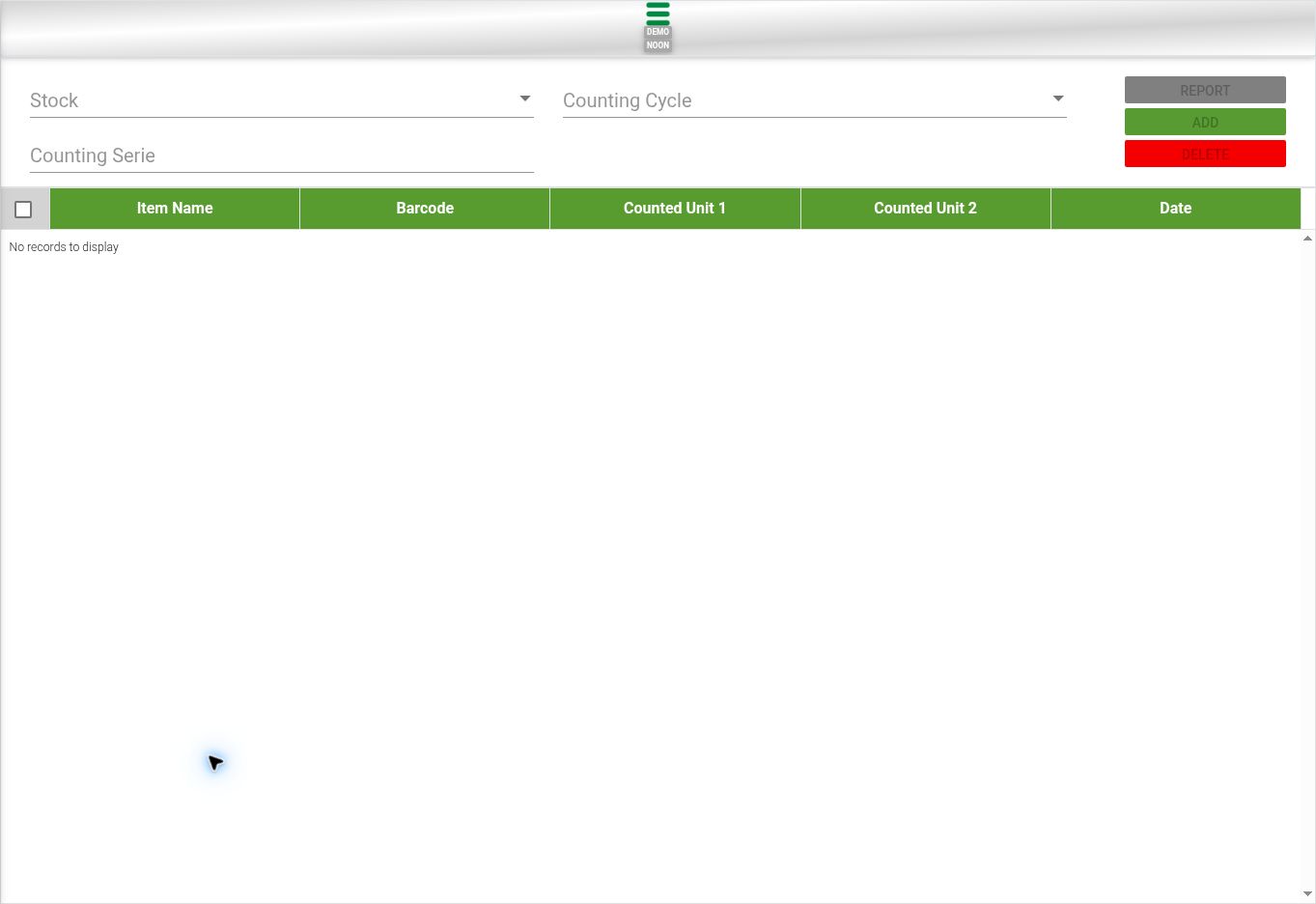
Review Stock, Counting Cycle, and Counting Serie against your assigned count. The counting grid shows Item Name, Barcode, Counted Unit1, Counted Unit2, and Date.
 23
233. Use the enabled count controls #
REPORT, ADD, and DELETE are provided. In the initial inspected workspace they were disabled until the required context was established. Use only the intended stock and count, and check unit definitions before entering counted values.
3Check the result #
Verify item barcode, count series, and the meaning of Unit1 / Unit2. This guide shows setup and controls; no stock count was submitted or deleted.


