

Delete an Invoice After Removing Its Payments #
Common POS · Shared procedures for retail, restaurant, and salon devices. Button availability follows your device configuration and permissions. Red numbered boxes identify the controls used in each step.
1. Find the intended invoice #
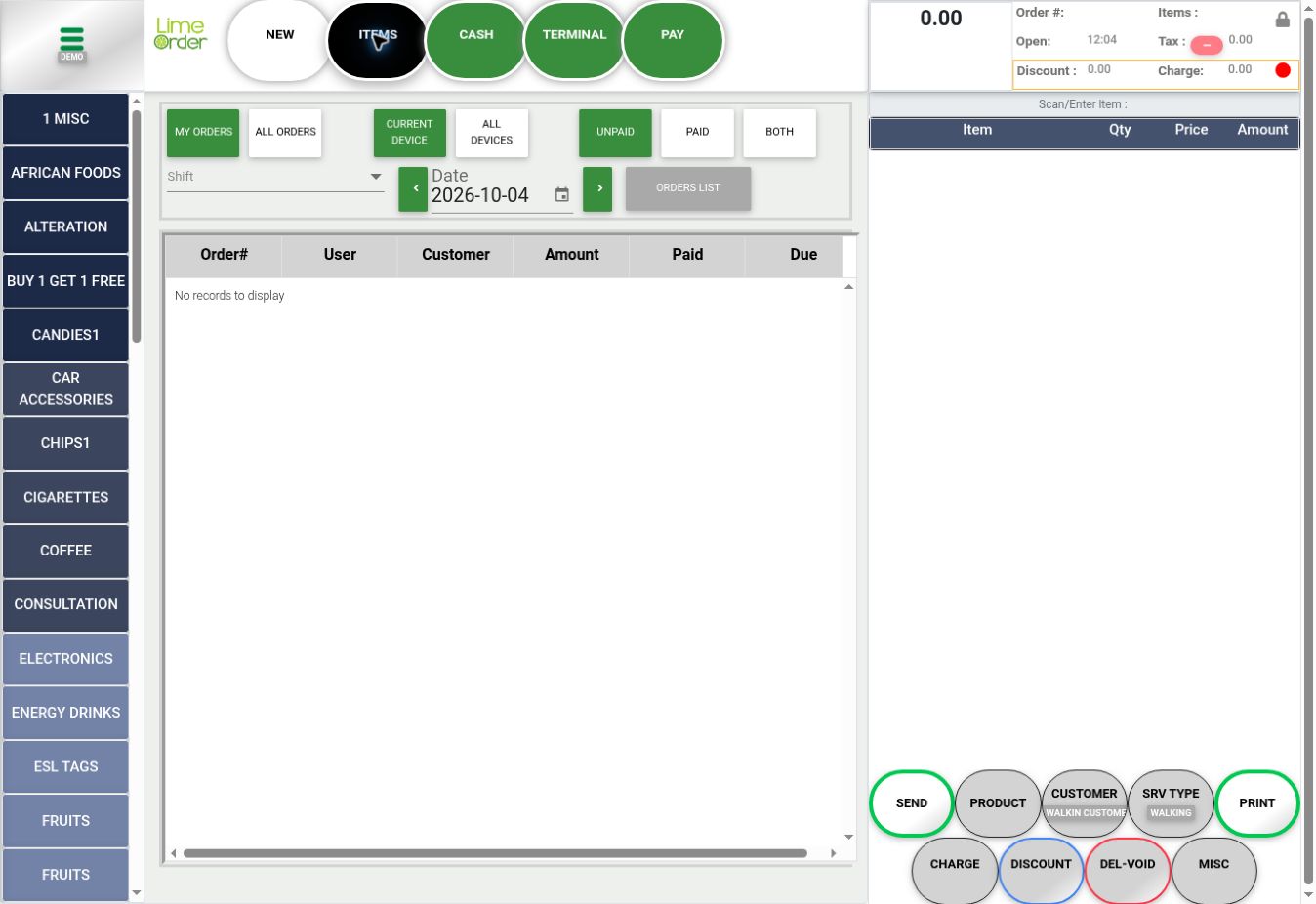
Open LIST, set the filters, and select the invoice. Check its reference, customer, and payment totals.
 1
12. Remove its recorded payments first #
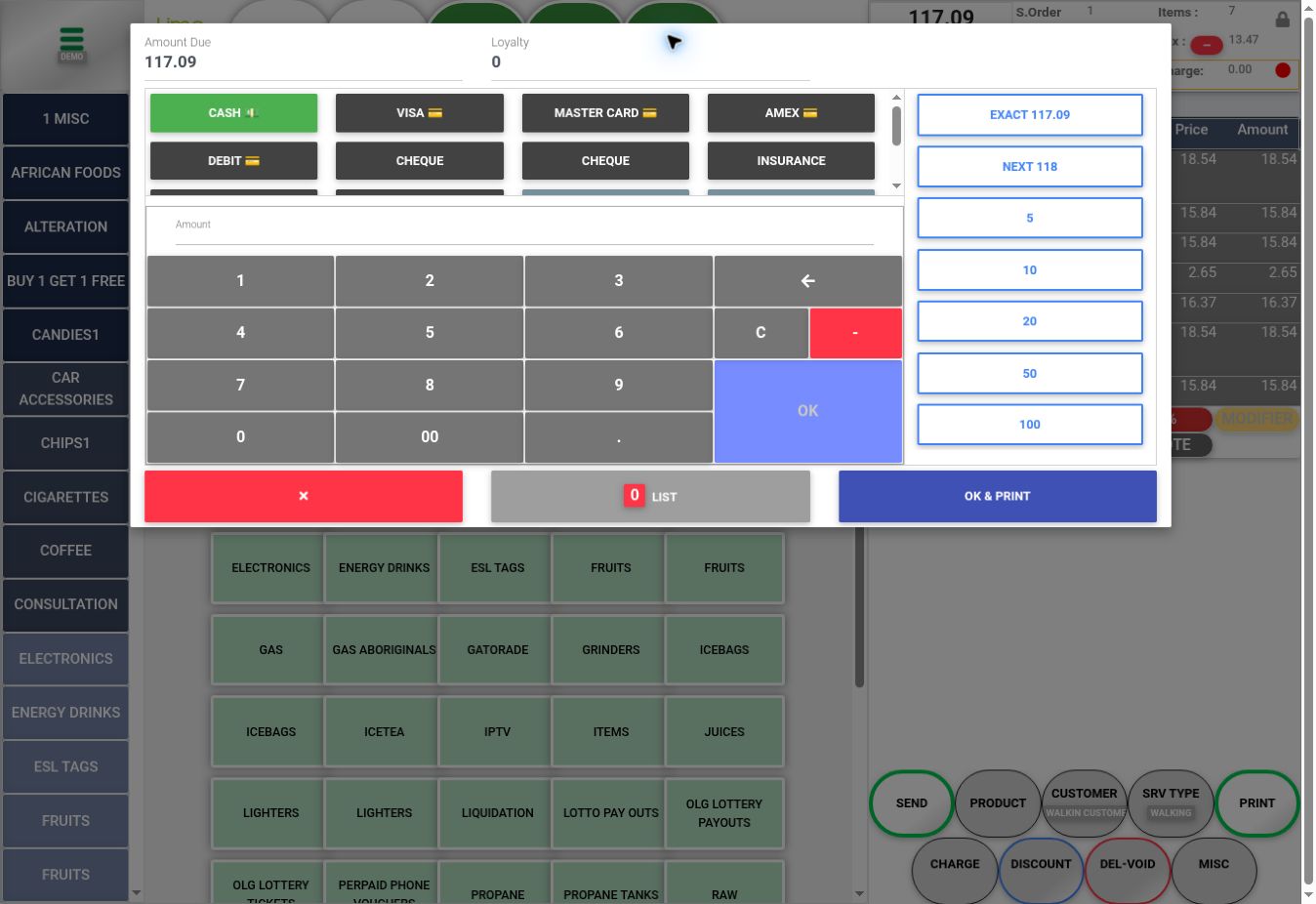
Press PAY, then LIST inside the payment dialog. Remove the invoice’s recorded payment entries using the payment deletion guide. Do not skip this step when payments exist.
 2
23. Return to Sales and press DEL–VOID #
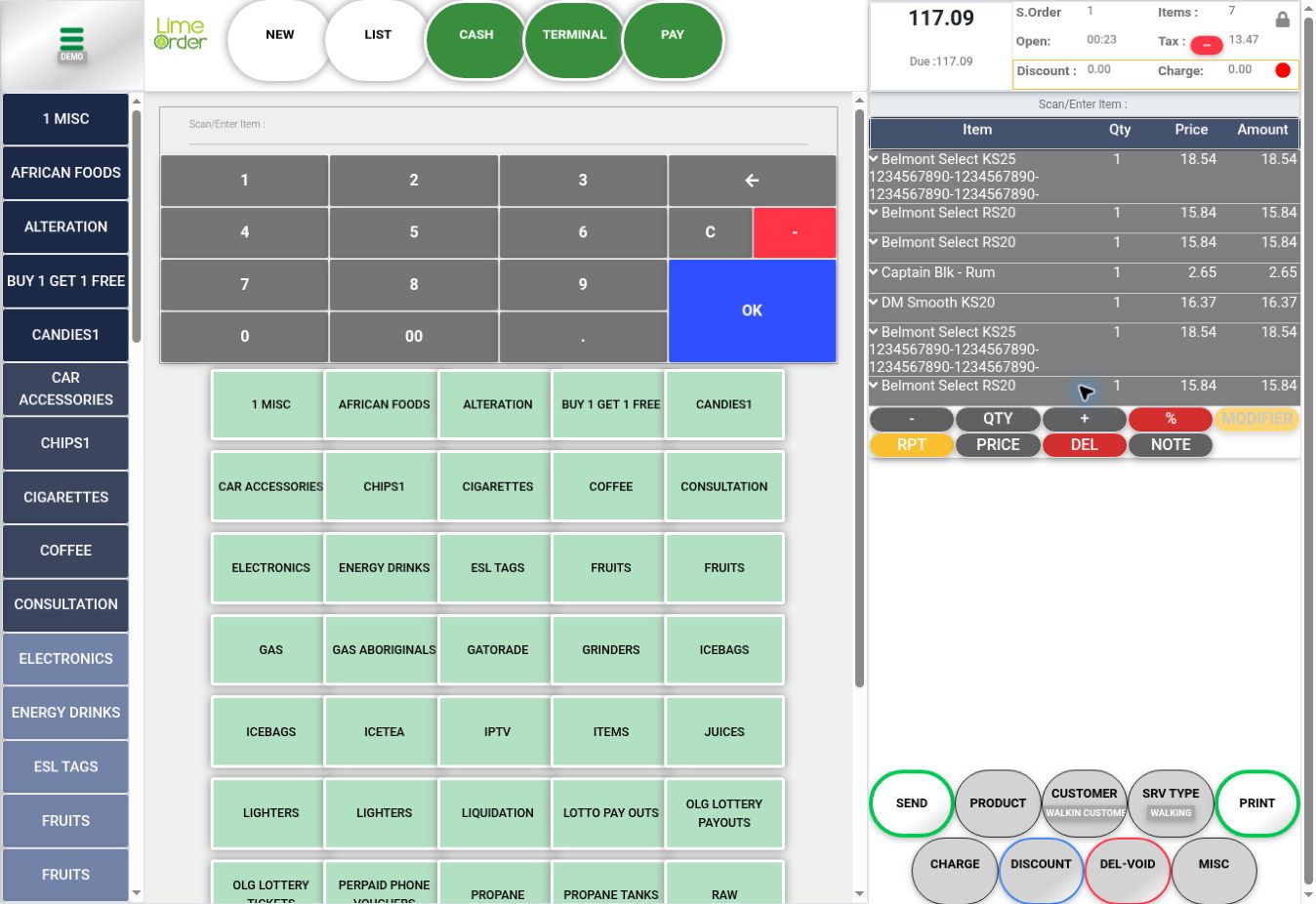
Close the payment dialog and return to the invoice basket. Press DEL–VOID below the basket. Review any confirmation and accept only when the displayed invoice is the intended one.
 3
3Check the result #
Verify the invoice’s resulting status in LIST. The screenshots identify the entry points before deletion; no invoice was deleted to create them.


