

Delete a Recorded Payment #
Common POS · Shared procedures for retail, restaurant, and salon devices. Button availability follows your device configuration and permissions. Red numbered boxes identify the controls used in each step.
1. Find and open the correct invoice #
Use LIST and its filters to locate the invoice. Verify its number, customer, Paid, and Due before proceeding.
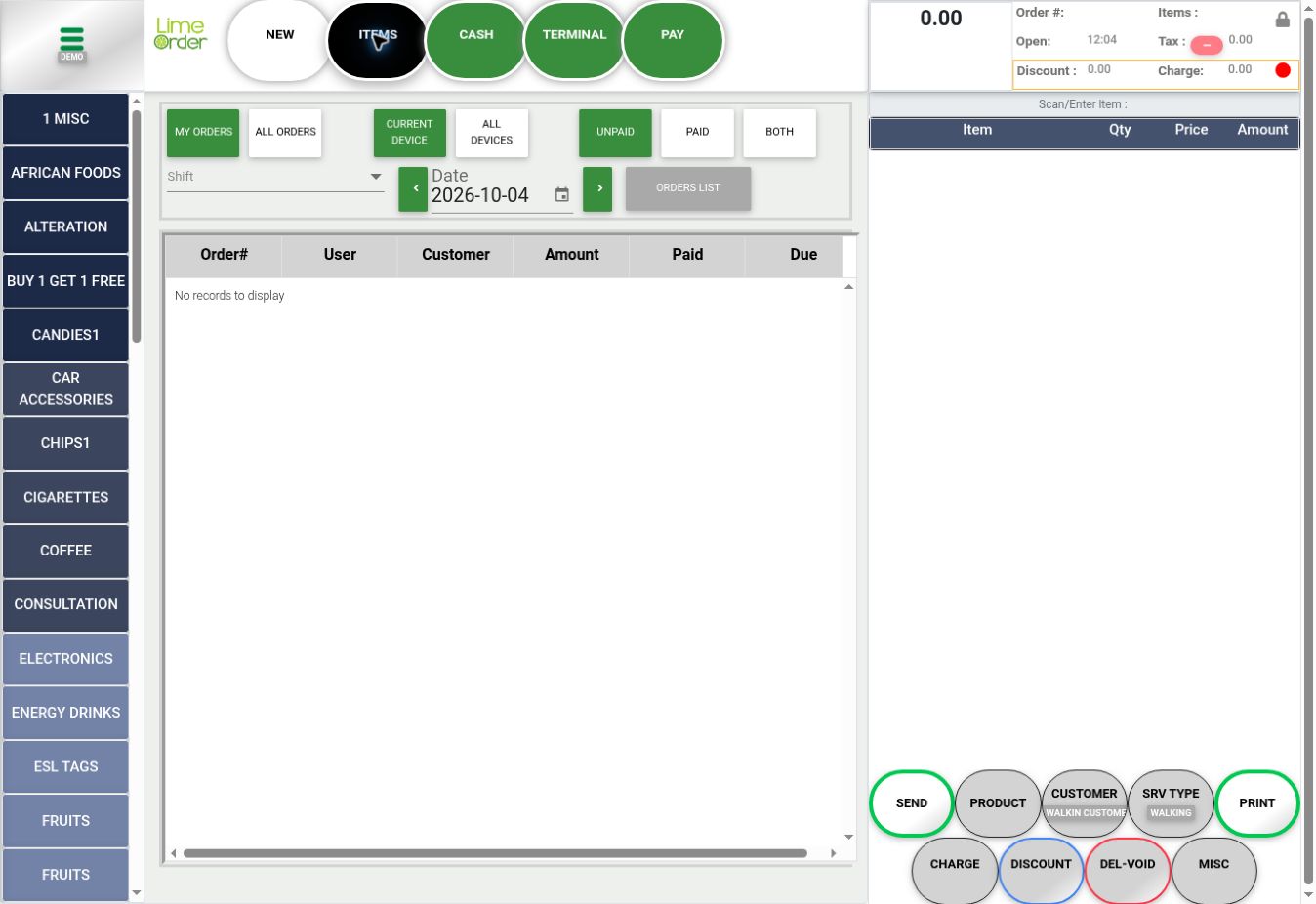 1
12. Press PAY #
Press PAY on the opened invoice to display its payment dialog.
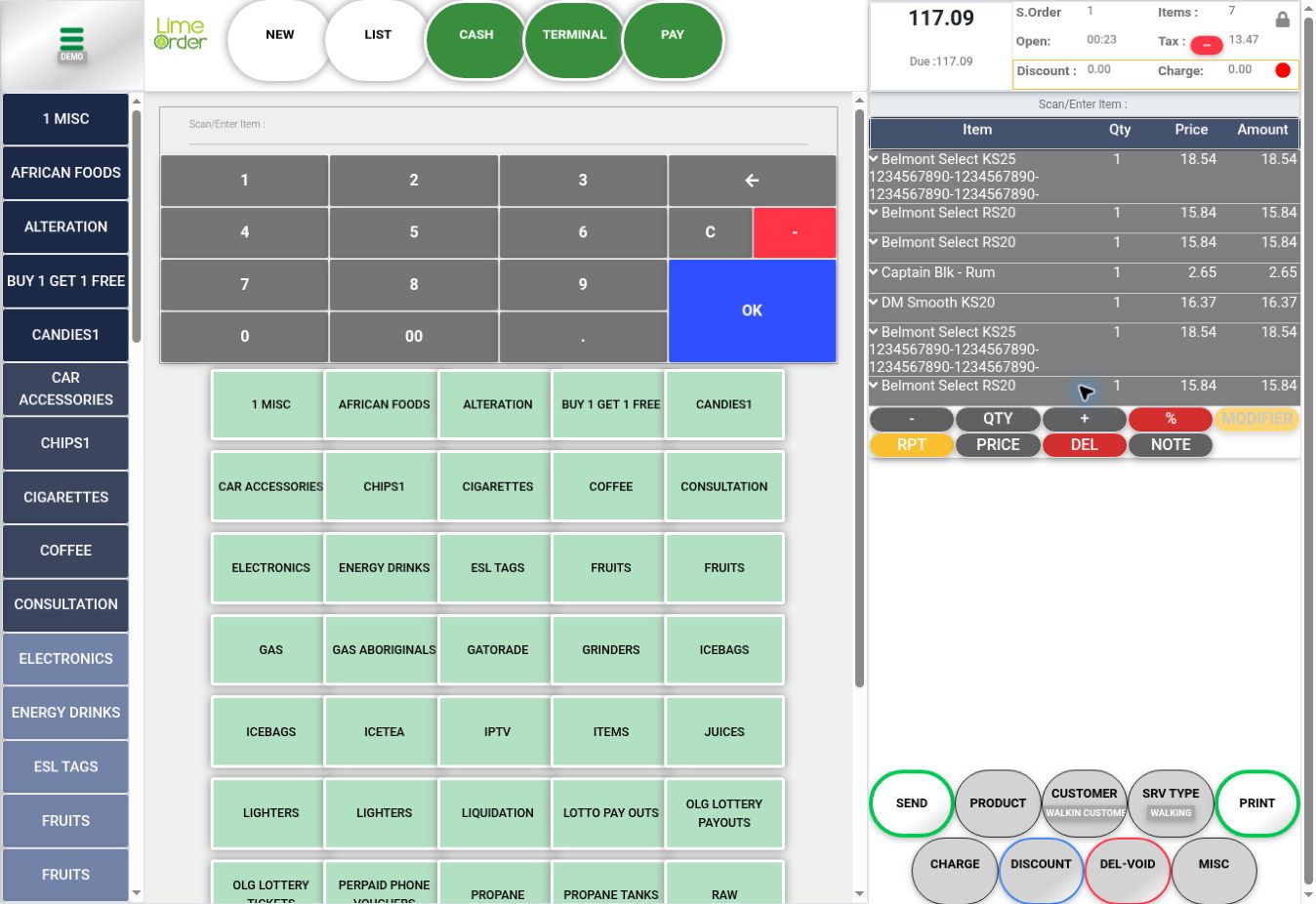 2
23. Press LIST inside PAY #
Press LIST at the bottom center of the payment dialog. The count shows how many payments are recorded. In this sample the count is 0 and no recorded-payment list opens; there is nothing to remove.
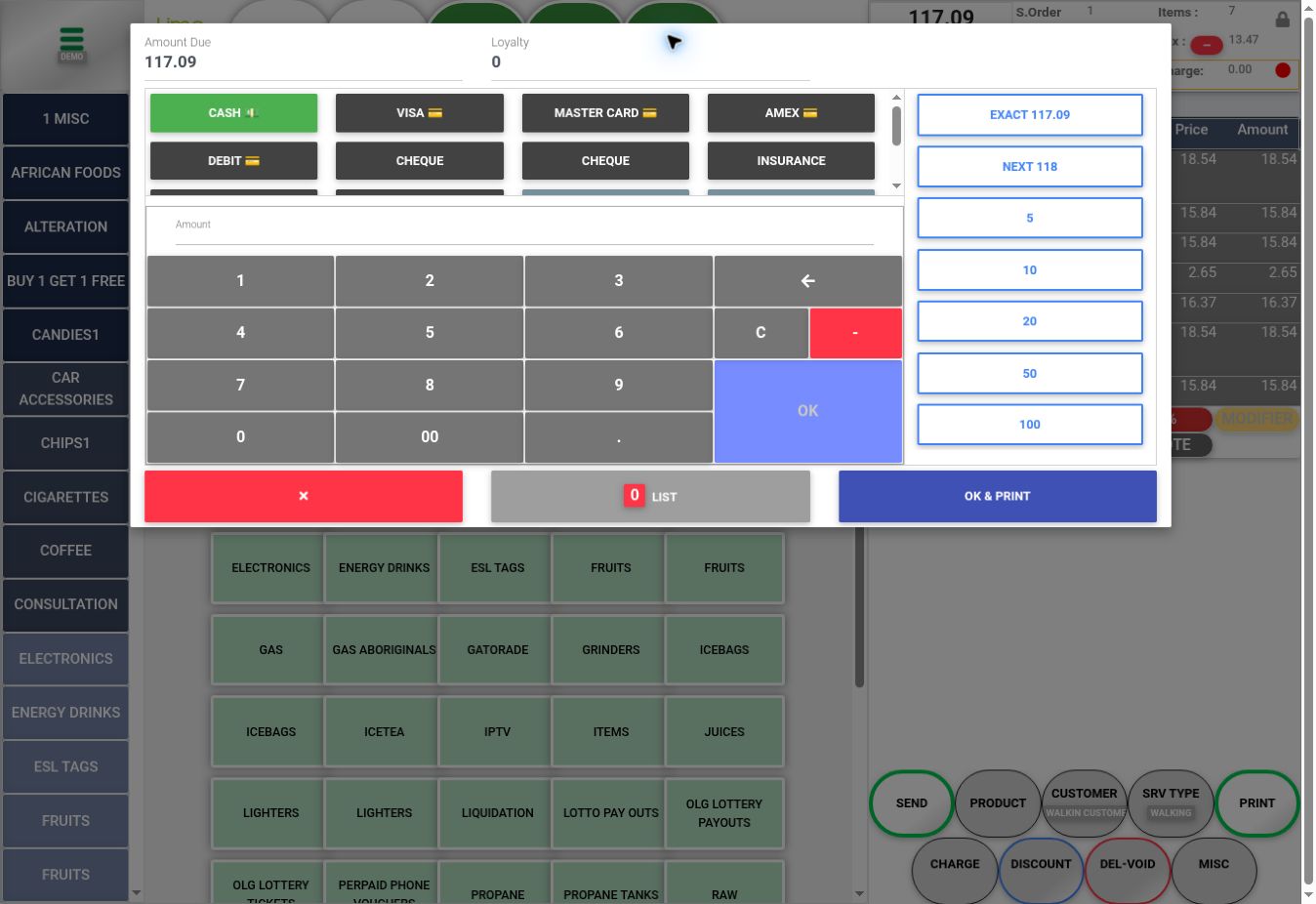 3
34. Select and delete the intended payment record #
When recorded payments are present, select the intended entry in that list and use its delete action. Review any confirmation before accepting. Repeat only for entries that need removal. This is the payment-record workflow supplied by LimeOrder; the populated list and final deletion were not staged for these screenshots.
Check the result #
Recheck Paid and Due. If you intend to delete the invoice, remove its recorded payments first, then continue with Delete an Invoice. Check your terminal/payment processor status when a correction requires a refund.


