

Table of Contents
Change an Item Quantity #
Common POS · Shared procedures for retail, restaurant, and salon devices. Button availability follows your device configuration and permissions. Red numbered boxes identify the controls used in each step.
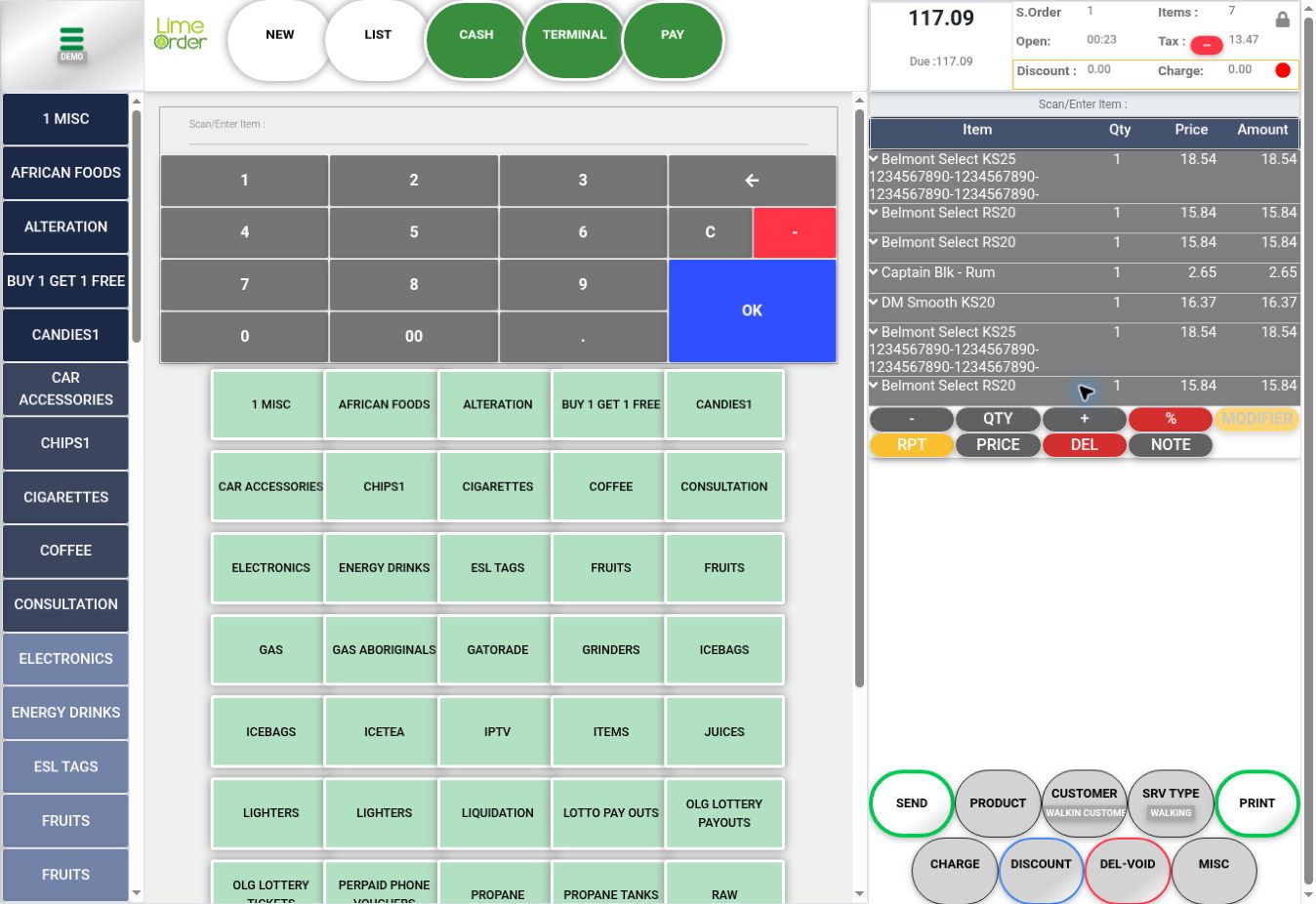
1. Select the basket line #
Press the required item row. It expands to reveal minus, QTY, plus, %, Modifier, RPT, PRICE, DEL, and NOTE.
 1
12. Press QTY #
Press QTY on the expanded line. The adjacent minus and plus controls are also available for quantity adjustments.
23. Enter and confirm the quantity #
The Qty / Tot dialog opens. Enter the required value in the input or use its number pad. Check the entry and press OK. The red X cancels the dialog.
 345
345Check the result #
Verify the selected line’s quantity and amount, then check the invoice total.


