

Open a Shift #
Common POS · Shared procedures for retail, restaurant, and salon devices. Button availability follows your device configuration and permissions. Red numbered boxes identify the controls used in each step.
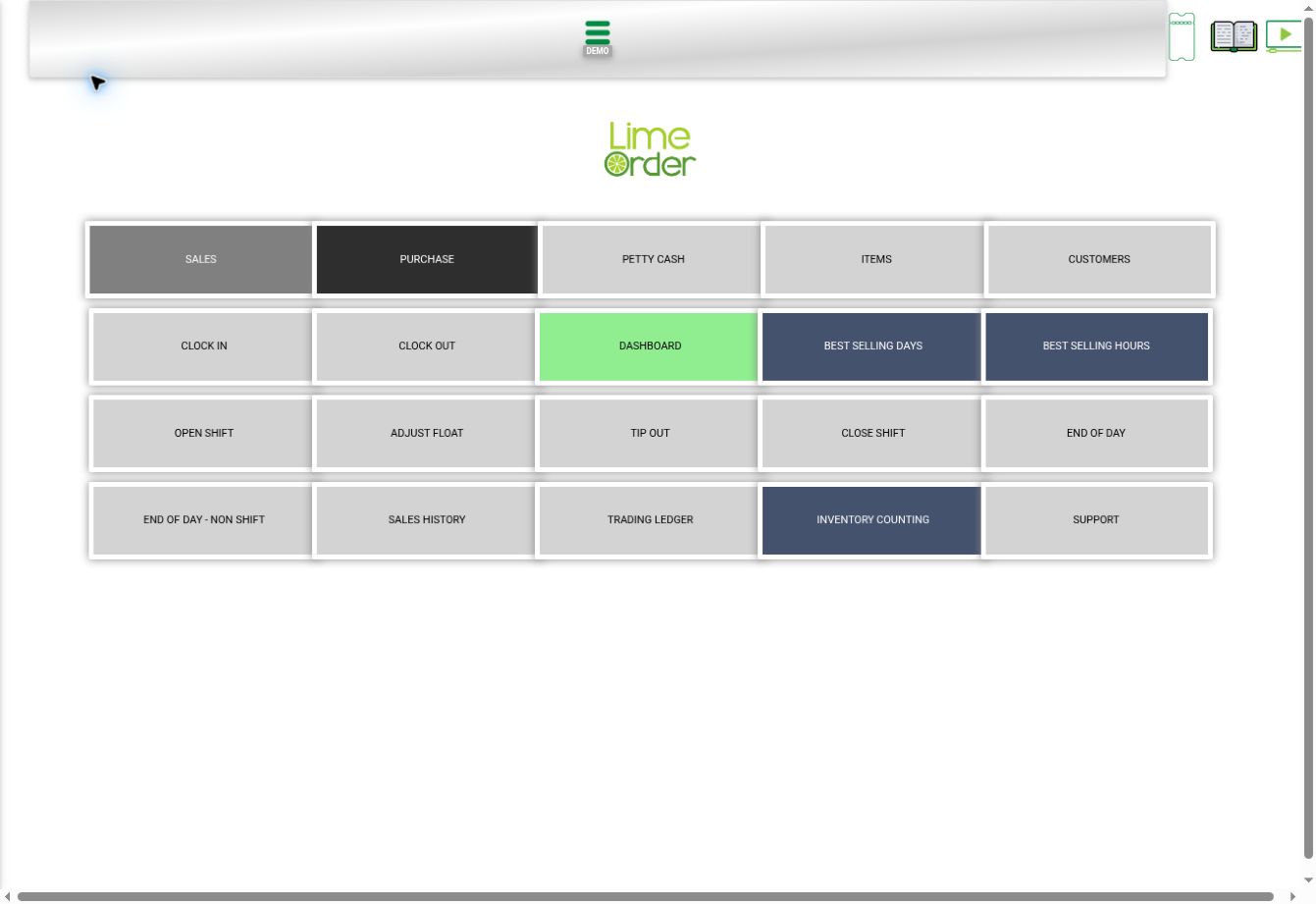
1. Open Home and press OPEN SHIFT #
Use the side menu → Home sequence, then choose OPEN SHIFT. Check the current device and whether a shift is already open.
 1
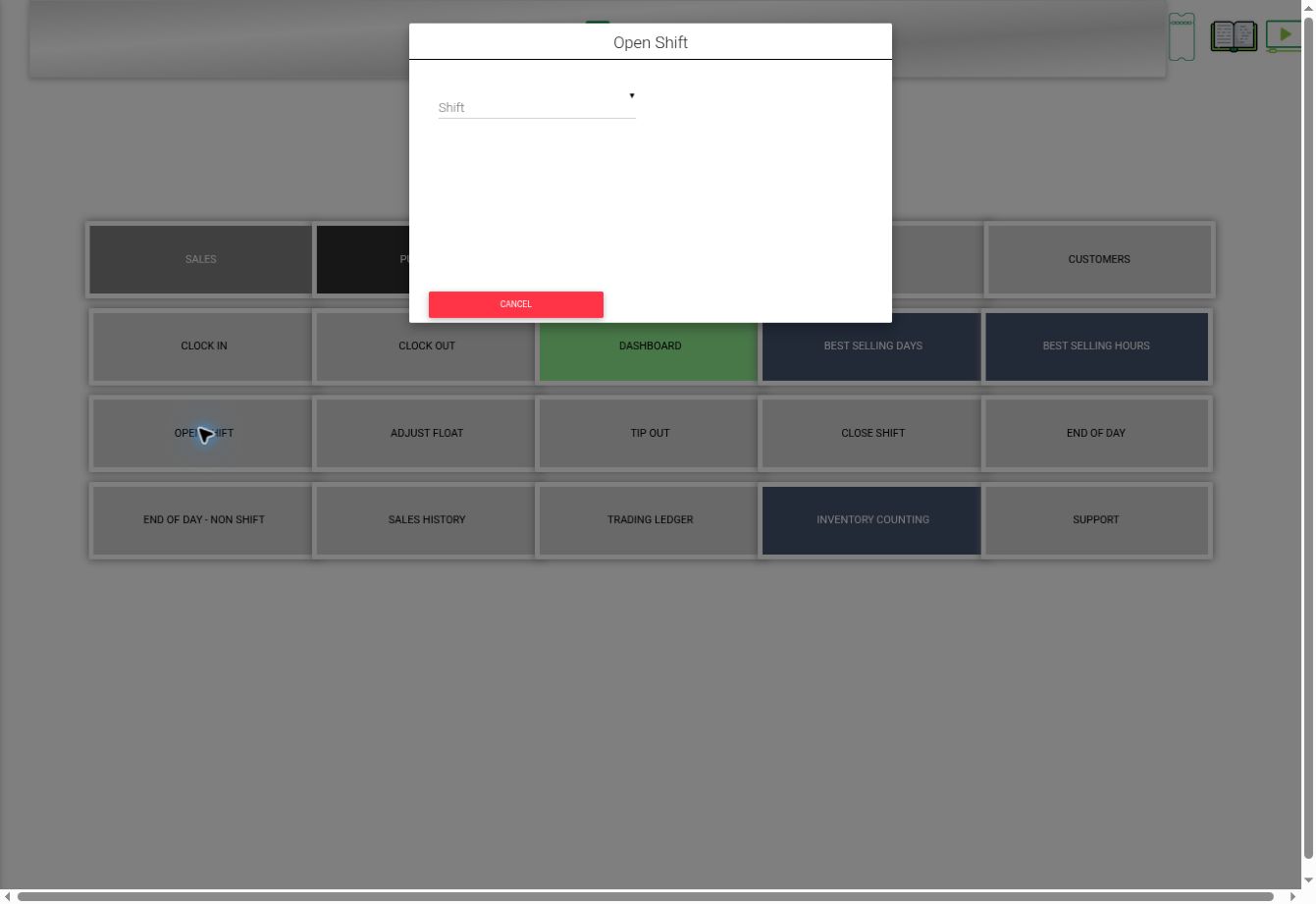
12. Open the Shift selector #
In Open Shift, press the Shift dropdown.
 2
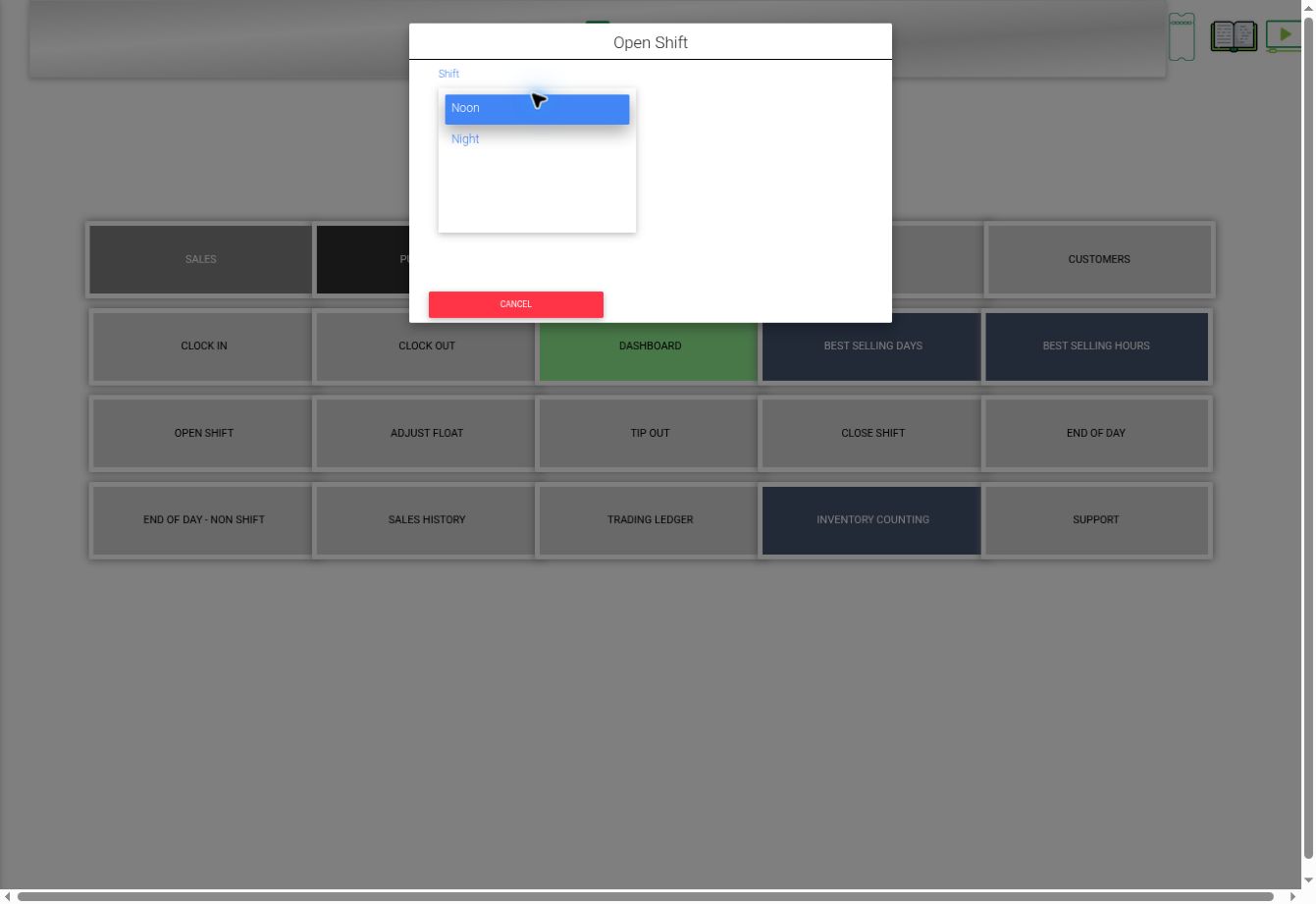
23. Choose the intended shift #
The inspected device lists Noon and Night. Choose the intended configured shift and continue with the opening controls presented for it. Follow the store’s opening-float procedure. CANCEL leaves the opening form.
 34
34Check the result #
Verify the active shift shown on the device header. If the app reports that another shift is already open, resolve that existing shift before opening another. Selecting and confirming a shift was not performed for capture.


