

Table of Contents
Close a Shift #
Common POS · Shared procedures for retail, restaurant, and salon devices. Button availability follows your device configuration and permissions. Red numbered boxes identify the controls used in each step.
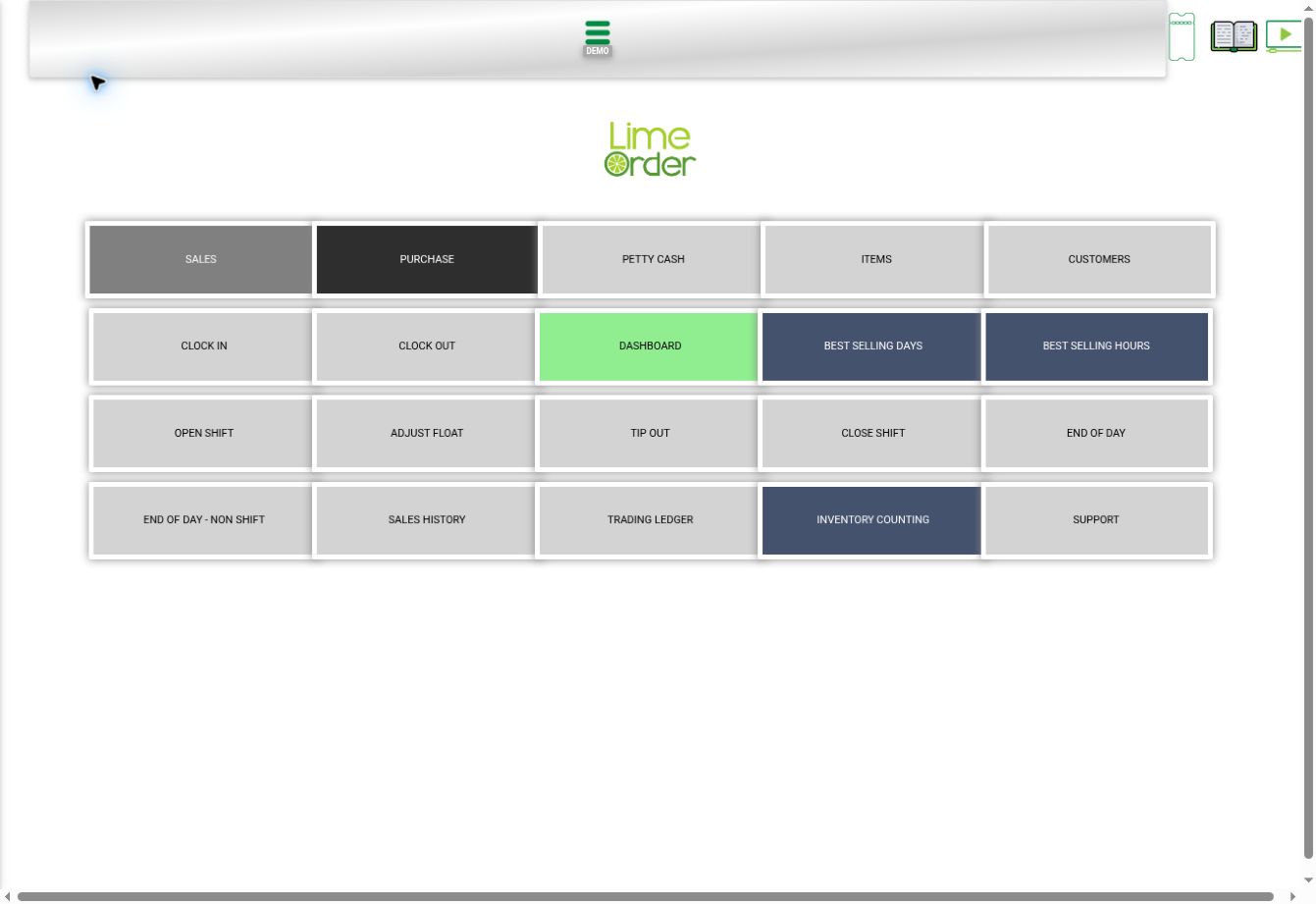
1. Open Home and press CLOSE SHIFT #
On Home, choose CLOSE SHIFT. Its caption can include the currently open shift.
 1
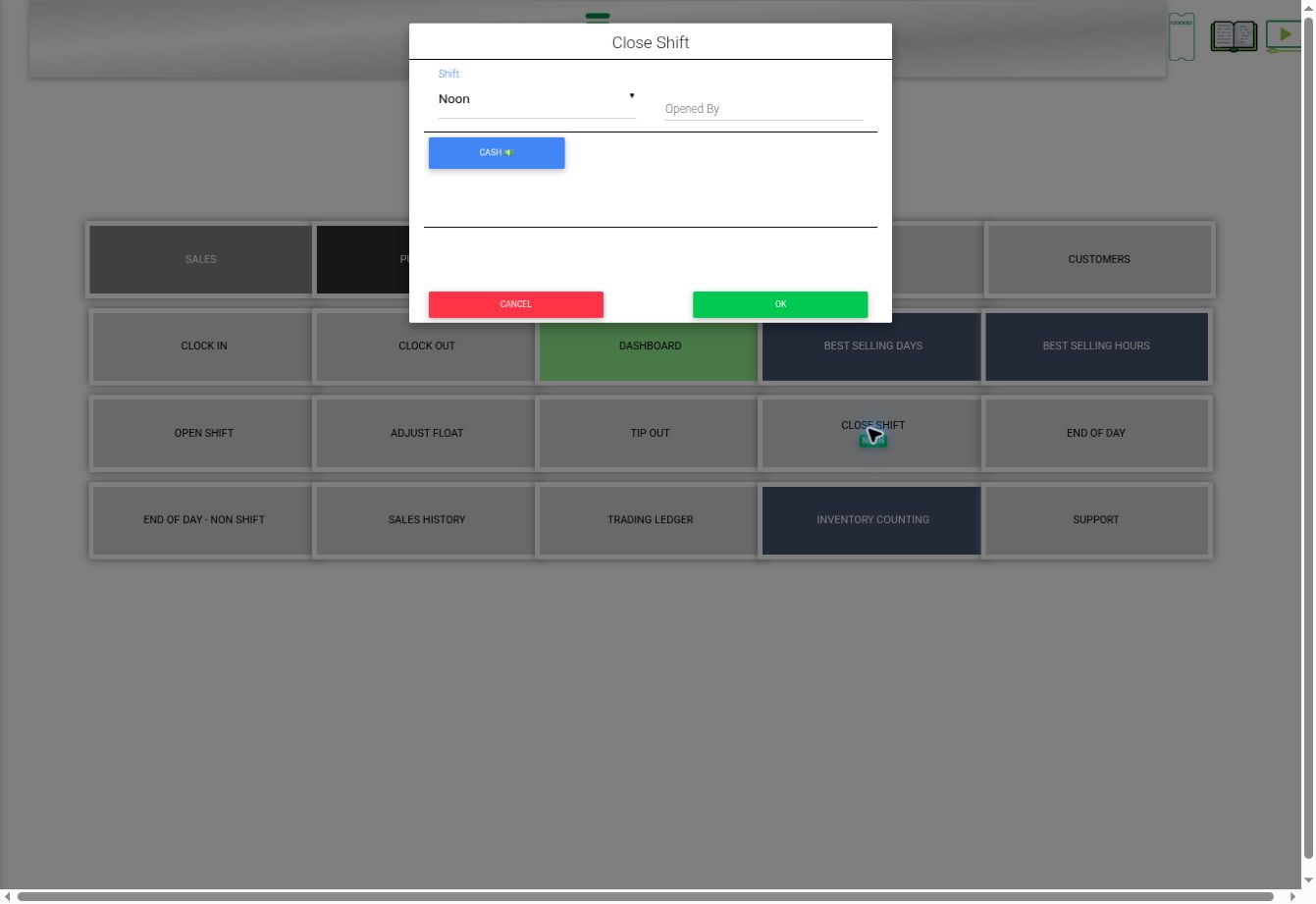
12. Review the closing form #
Check Shift and Opened By. Use CASH to access the cash-related reconciliation workflow when required by your store.
 23
233. Confirm only after reconciliation #
Press OK when you intend to close the reviewed shift. CANCEL leaves it open.
34Check the result #
Verify the active shift status on the device header. Closing a shift is separate from clocking out and viewing an End of Day report.


