

Table of Contents
Business Intelligence #
POS Admin • Screenshots show example records. Select any screenshot to enlarge it.
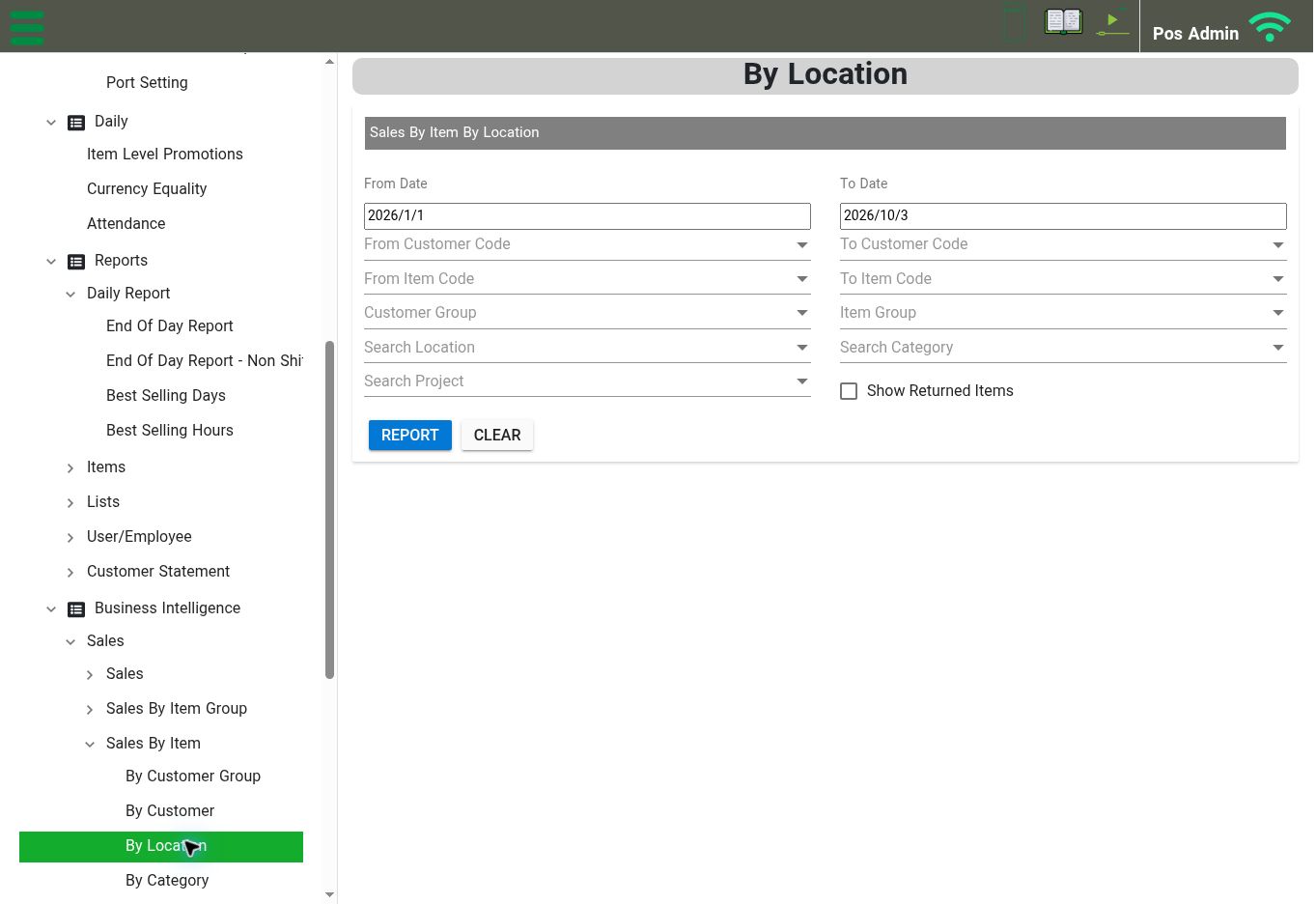
Sales By Item By Location: choose the date range and optional filters, then select Report. View full-size screenshot
Open: Business Intelligence → Sales
The Sales branch includes Sales, Sales By Item Group, Sales By Item, Sales By Customer Group, Sales By Customer, Sales By Location, Sales By Category, and Sales By Project. Expand the branch you need to find its further breakdowns.
Example: sales by item and location #
Business Intelligence → Sales → Sales By Item → By Location
- Set From Date and To Date.
- Review the customer range, item range, customer group, item group, location, category, and project selectors as needed.
- Review Show Returned Items.
- Select Report to request the analysis.
- Use Clear to reset the selections.
Keep the same date range and return-item selection when comparing results. The Business Intelligence menu also has a Purchase branch; choose its available analysis according to your reporting task.


