

Start and Review an Invoice #
Common POS · Shared procedures for retail, restaurant, and salon devices. Button availability follows your device configuration and permissions. Red numbered boxes identify the controls used in each step.
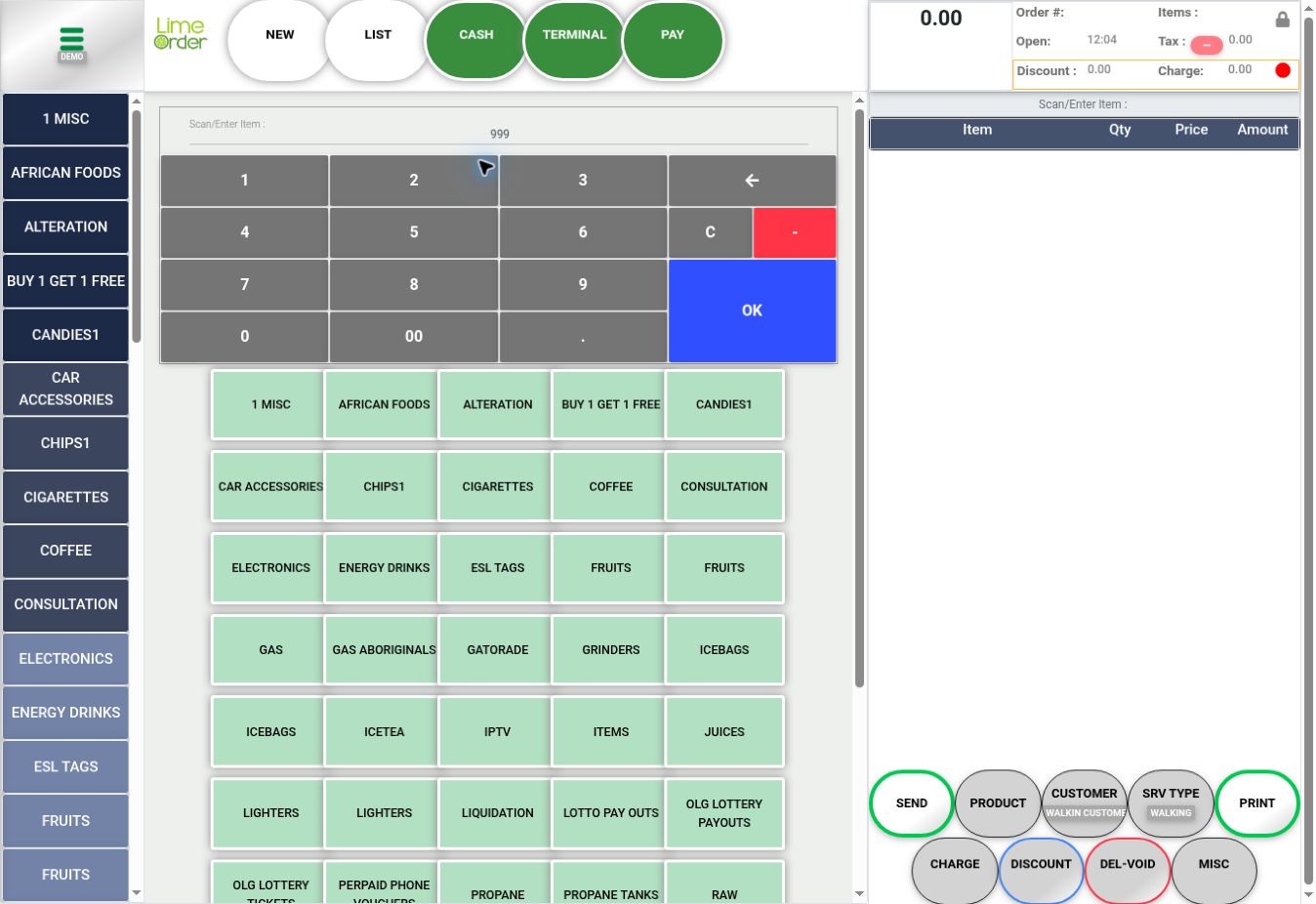
1. Check the current invoice before NEW #
Check the basket and invoice reference first. Press NEW only when you intend to start another invoice; complete or handle the current order under your store procedure.
 1
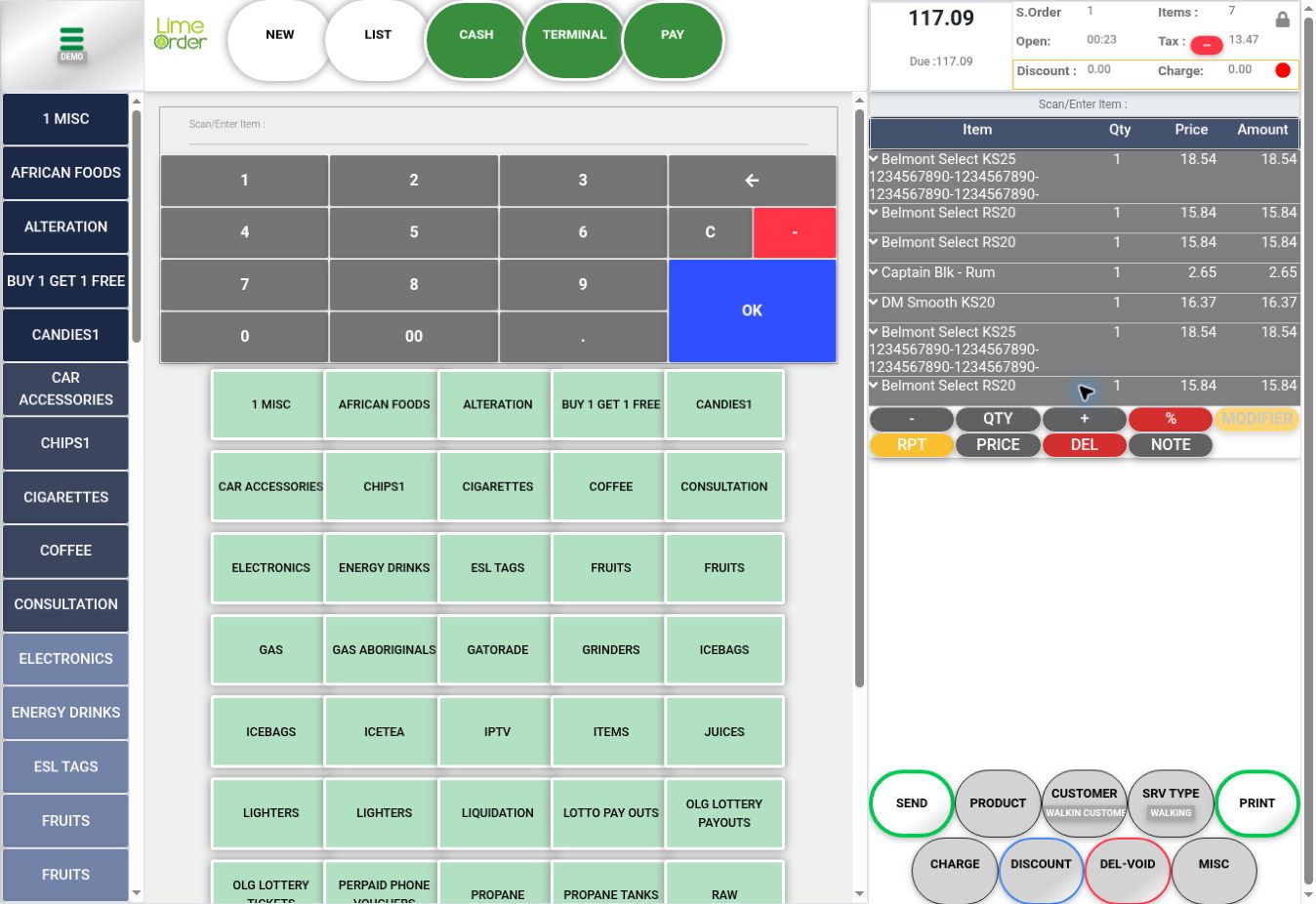
12. Add items and review the basket #
Use product buttons, Scan / Enter Item, or PRODUCT lookup. The basket on the right shows Item, Qty, Price, and Amount. Check the customer and the displayed totals.
 2
23. Review payment or order details #
Press PAY for the payment dialog. Press MISC for order references and receipt tools. Opening PAY or MISC saved the inspected invoice; a save message alone does not confirm payment. See payment steps.
34Check the result #
Confirm the correct invoice, customer, items, quantities, tax, discount, charge, and Amount Due before recording payment.


