

Add Items by Barcode or Product Search #
Common POS · Shared procedures for retail, restaurant, and salon devices. Button availability follows your device configuration and permissions. Red numbered boxes identify the controls used in each step.
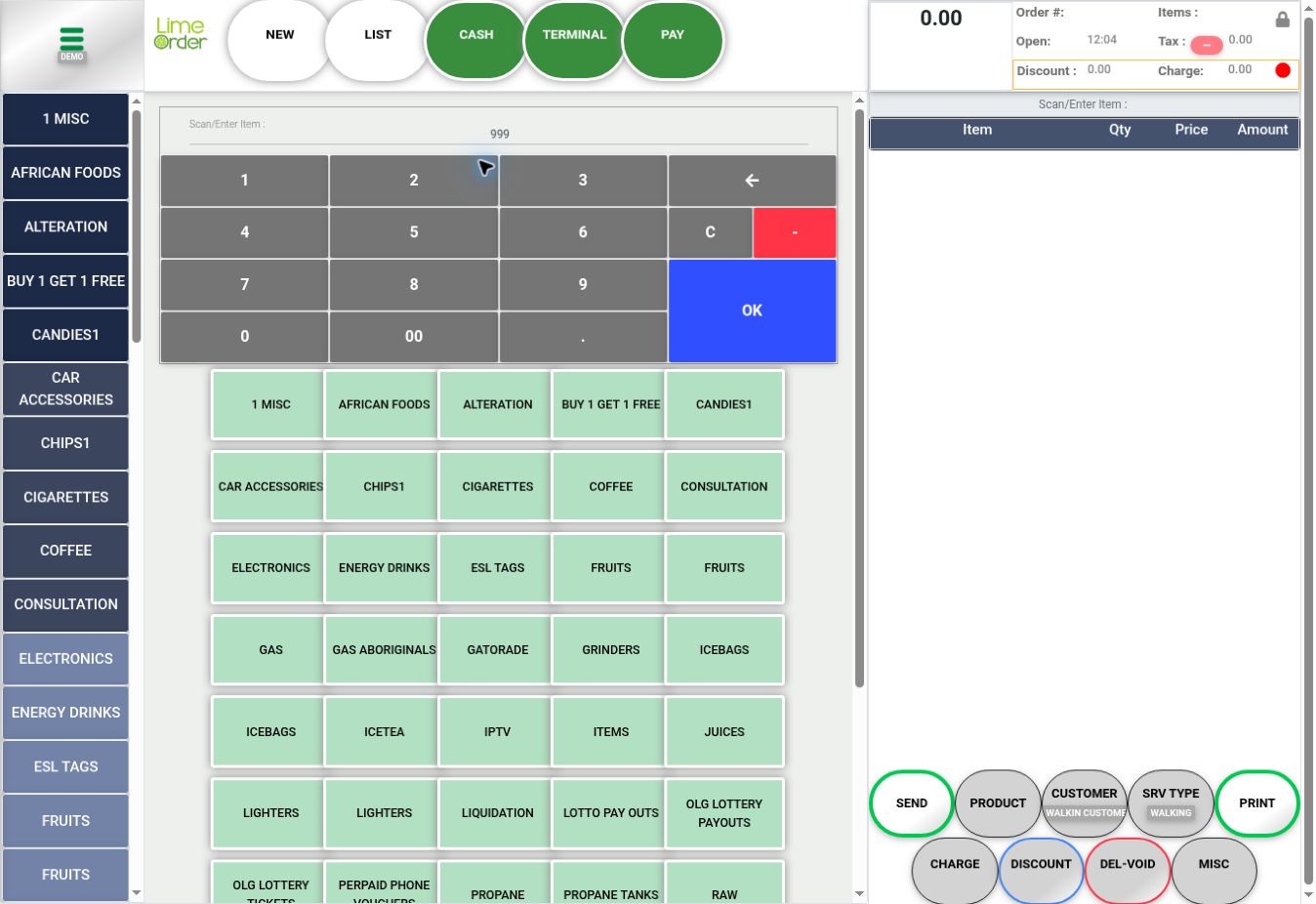
1. Use Scan / Enter Item or PRODUCT #
Scan the barcode in Scan / Enter Item. For a manual search, press PRODUCT below the basket. You can also choose a category and one of its product buttons.
 12
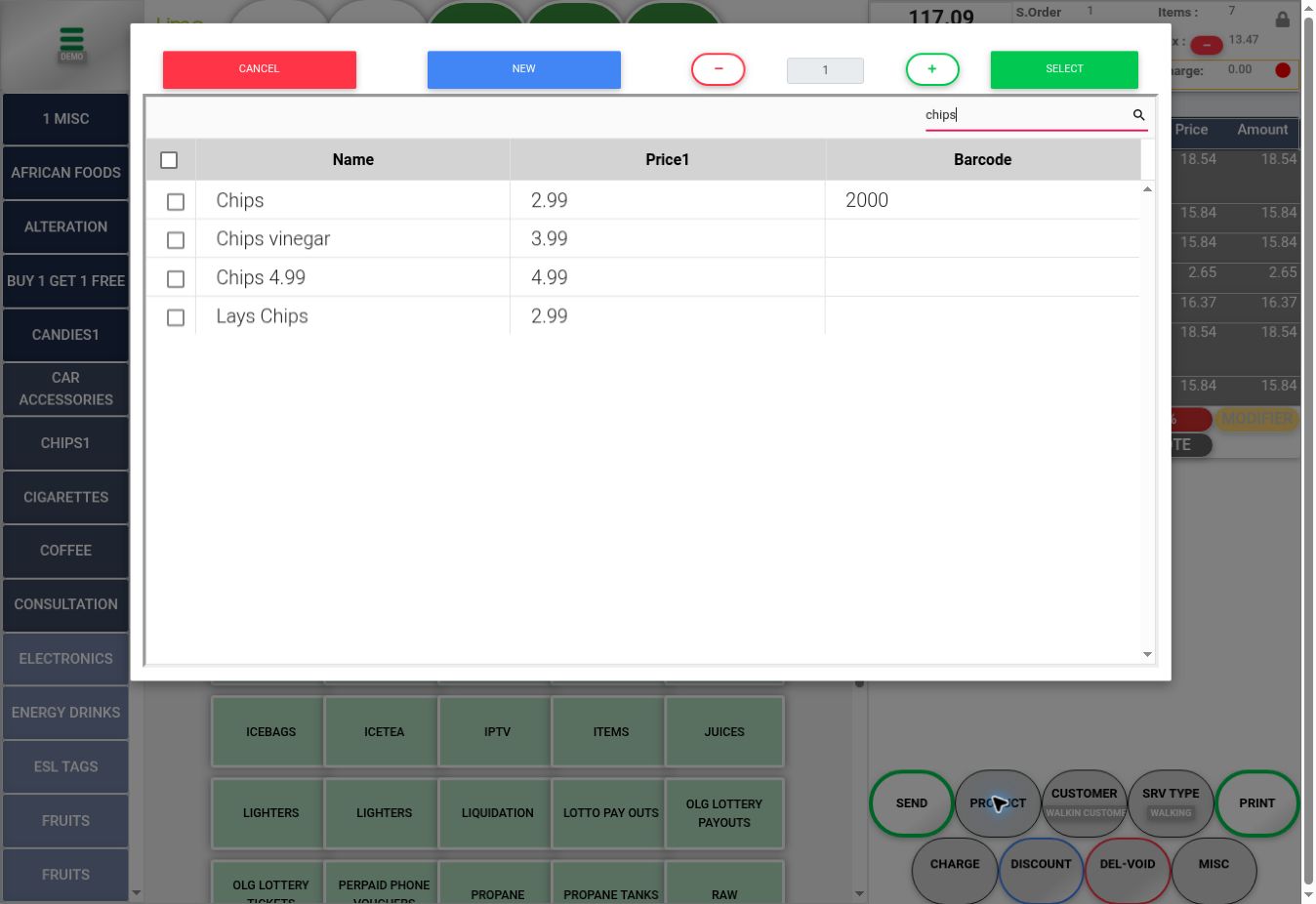
122. Search the product list #
In the product dialog, type a name or barcode into the search box and run the search. The example searches chips. Read Name, Price1, and Barcode before choosing a matching row.
 23
233. Choose items, quantity, and SELECT #
Tick the required item checkbox. Check the quantity at the top and use minus or plus when needed. Press SELECT to add the chosen item(s); CANCEL returns without selecting. NEW is a separate catalog-creation action.
3456Check the result #
Check the added lines, quantities, and amounts in the basket. Similar product names can have different prices and barcodes.


