

Table of Contents
Inventory counting #
POS Admin • Screenshots show example records. Select any screenshot to enlarge it.
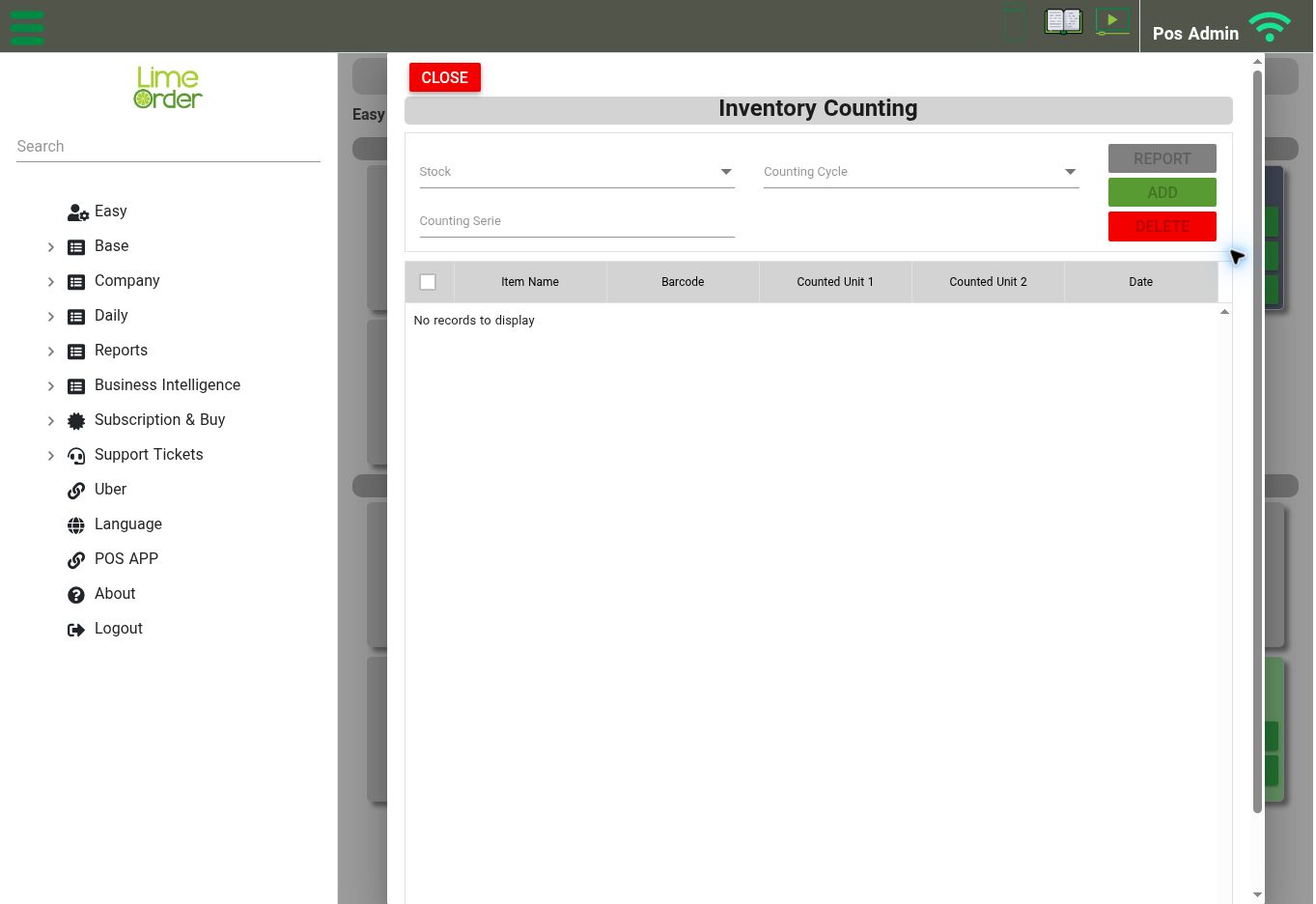
Inventory Counting: choose Stock, Counting Cycle, and Counting Serie to enable the count actions. View full-size screenshot
Open: Easy → Inventory Counting
Prepare a counting cycle #
- Open the Counting Cycle shortcut.
- Use Add/New to create a cycle, or select an existing cycle and use Edit.
- Give the cycle a meaningful name, such as “October stock count,” and save it.
Open the inventory count #
- Open the Inventory Counting shortcut.
- Select Stock.
- Select Counting Cycle.
- Complete Counting Serie for the count you are working on.
- When available, use Add to enter count records and follow the entry form.
- Review the list’s Item Name, Barcode, Counted Unit 1, Counted Unit 2, and Date columns.
- Use Report to review the count. A separate Report shortcut is also available on the Easy page.
The Add, Delete, and Report controls may be disabled until the required count selections are complete. Keep the stock, cycle, and series consistent for the count you are reviewing. Do not interpret an empty count list as a completed count.


