

Table of Contents
Kitchen printers and product routing #
POS Admin • Screenshots show example records. Select any screenshot to enlarge it.
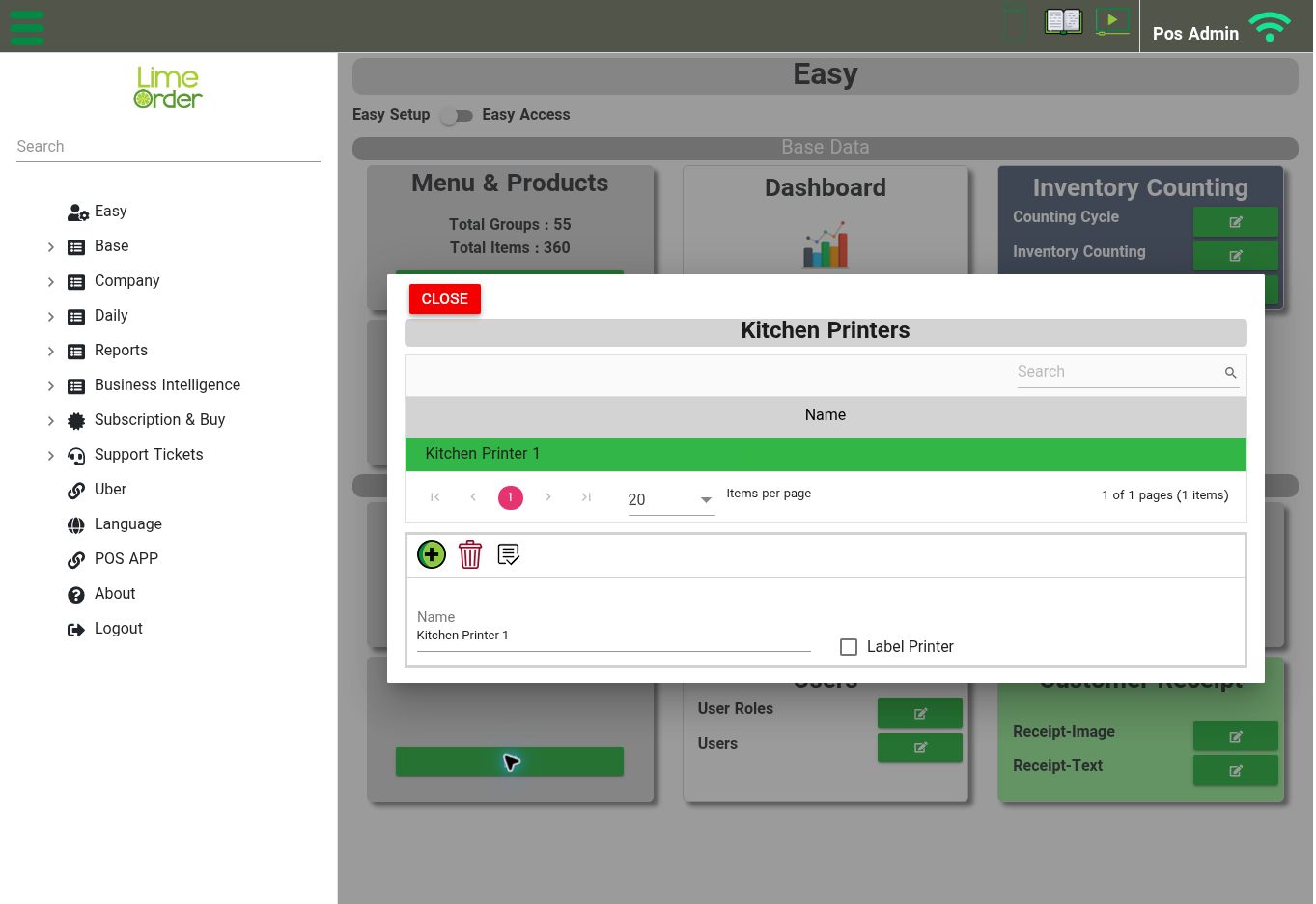
Kitchen Printers: select a printer record to review its name and Label Printer option. View full-size screenshot
Open: Easy → Kitchen Printers
- Select an existing kitchen printer record or use Add/New.
- Set its Name.
- Review the Label Printer checkbox when configuring a label printer.
- Save the record.
- Open each relevant product and select its destination in General → Kitchen Printer/KDS.
- Save the product and check a sample order on the configured POS and kitchen destination.
Use clear destination names such as Kitchen or Drinks Station. The Kitchen Printers form reviewed here defines the logical name and label-printer option. Physical printer connectivity and the KDS device’s own setup must also be configured for your installation.


