

Product groups and items #
POS Admin • Screenshots show example records. Select any screenshot to enlarge it.
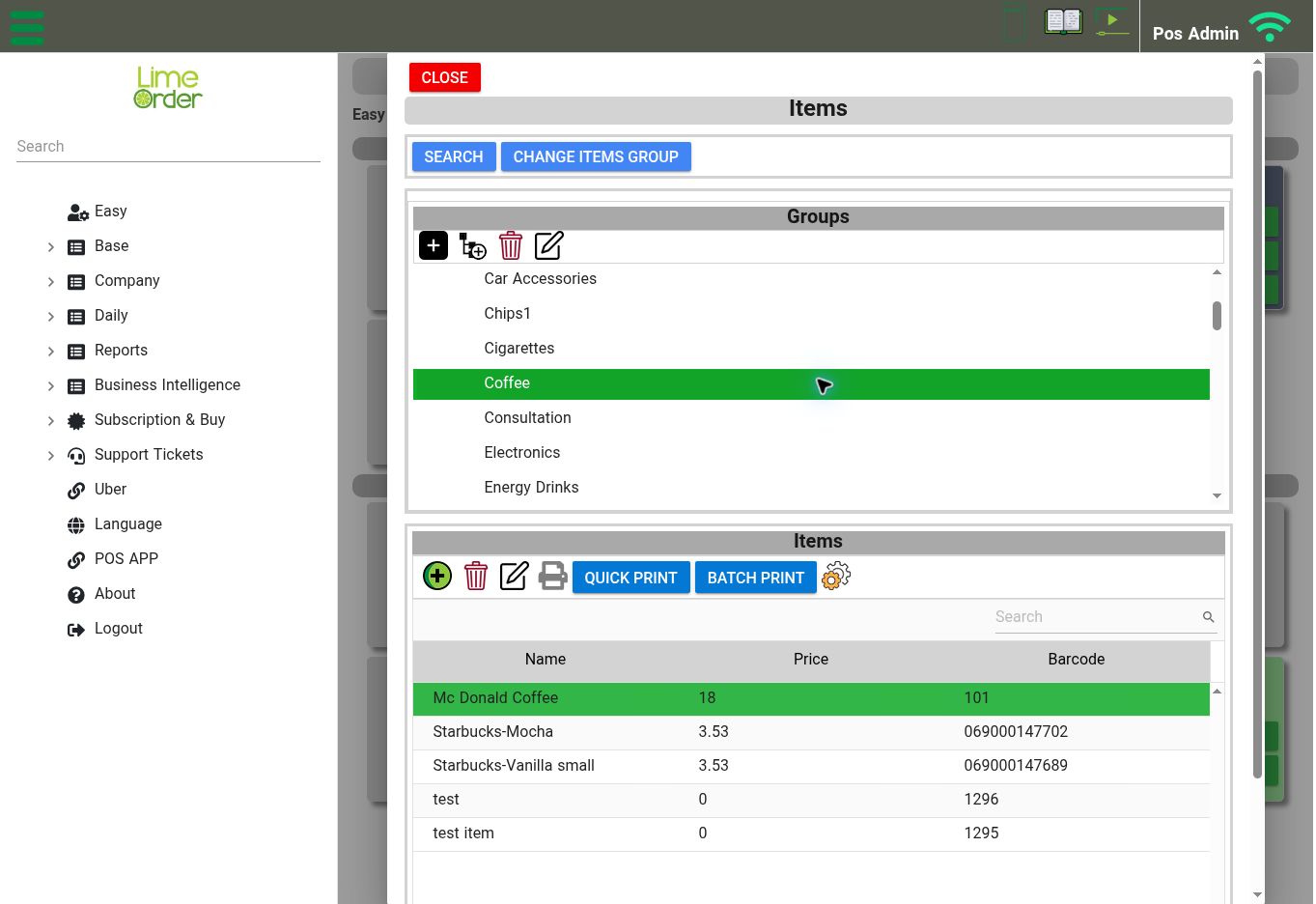
Select a product group to see its items and the Name, Price, and Barcode columns. View full-size screenshot
Open: Easy → Menu & Products, or Base → Items → Items
The Items screen has a Groups section and an Items list. Select a group to view its items. The list shows Name, Price, and Barcode.
Create or edit a product group #
- Use the group Add/New control to create a group, or select an existing group and use Edit.
- Complete the group form and save it.
- To create a subgroup, first select the intended parent group, then use the subgroup control.
Keep group names clear: for example, Appetizers, Main Courses, Drinks, or Desserts. The group toolbar also includes a Delete control; select the intended group carefully.
Add or edit an item #
- Select the product’s group.
- Use the item Add/New control, or select an existing item and use Edit.
- Complete the General tab using the fields below.
- Review the Price, Barcode, and Order Point tabs as needed.
- Select Save. Use Cancel to leave the editor without saving.
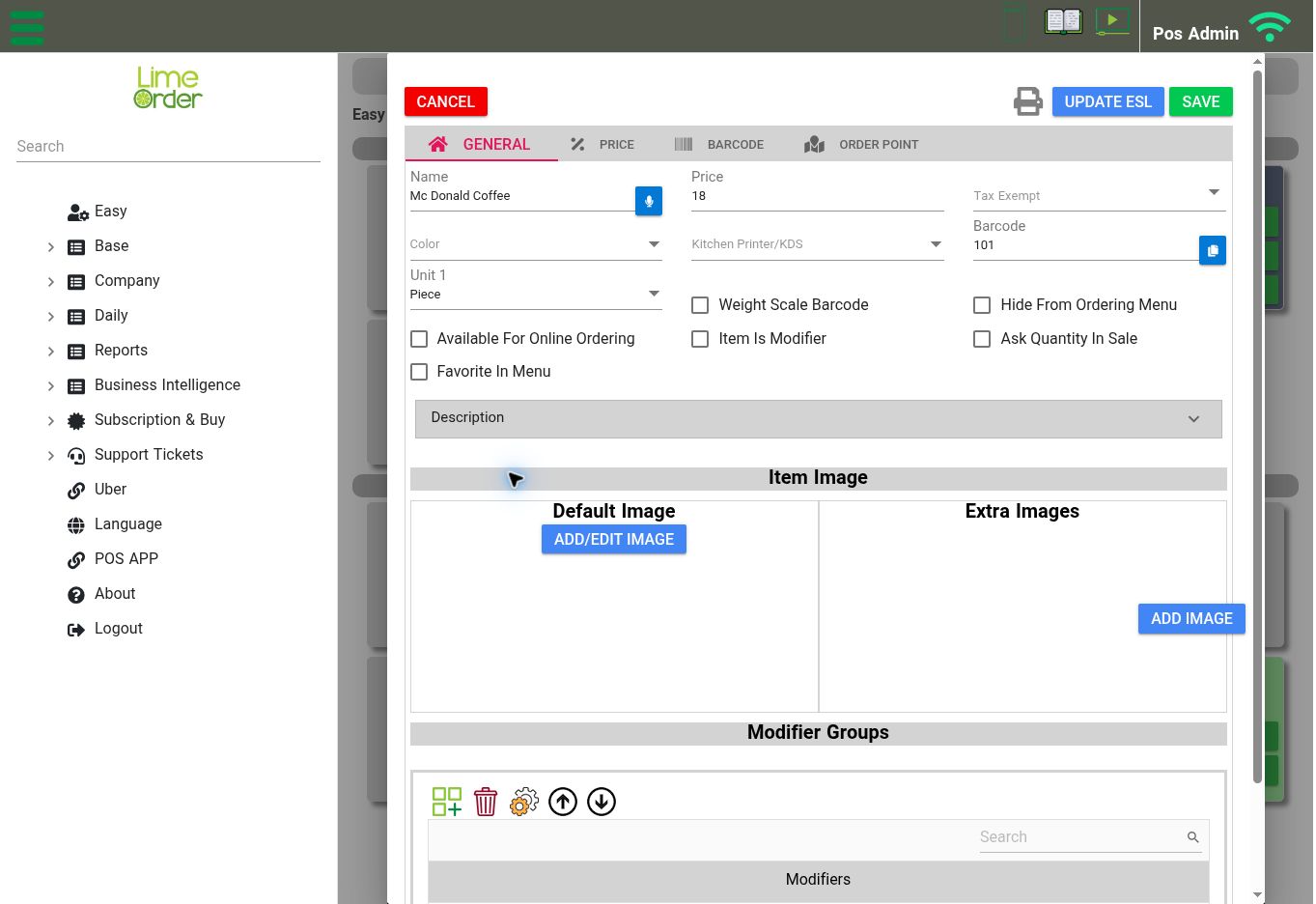
Item General tab: review Kitchen Printer/KDS, barcode, availability options, images, and Modifier Groups. View full-size screenshot
| General field or option | How to use it |
|---|---|
| Name and Price | Enter the product name and its price. |
| Tax Exempt | Review the item’s applicable exemption selection. |
| Color | Choose the product’s colour setting. |
| Kitchen Printer/KDS | Select the configured kitchen destination for this product. |
| Barcode and Unit 1 | Set the barcode and choose the product’s unit. |
| Weight Scale Barcode | Use this option for products configured to use a weight-scale barcode. |
| Hide From Ordering Menu | Controls whether the product is hidden from the ordering menu. |
| Available For Online Ordering | Controls the product’s online-order availability. |
| Item Is Modifier | Identifies the item as a modifier. |
| Ask Quantity In Sale | Enables the product’s quantity prompt option. |
| Favorite In Menu | Marks the product as a menu favourite. |
| Description and Item Image | Expand Description when needed. Use Add/Edit Image for the default image and Add Image for extra images. |
| Modifier Groups | Manage the modifier groups attached to this product using the controls in this section. |
The Items screen also provides Search, Change Items Group, Quick Print, and Batch Print. Use Change Items Group when reorganizing products; use the print controls for the available item printing workflow. Confirm the selected items and destination before completing a batch operation.


