

Table of Contents
End-of-day reports and exports #
POS Admin • Screenshots show example records. Select any screenshot to enlarge it.
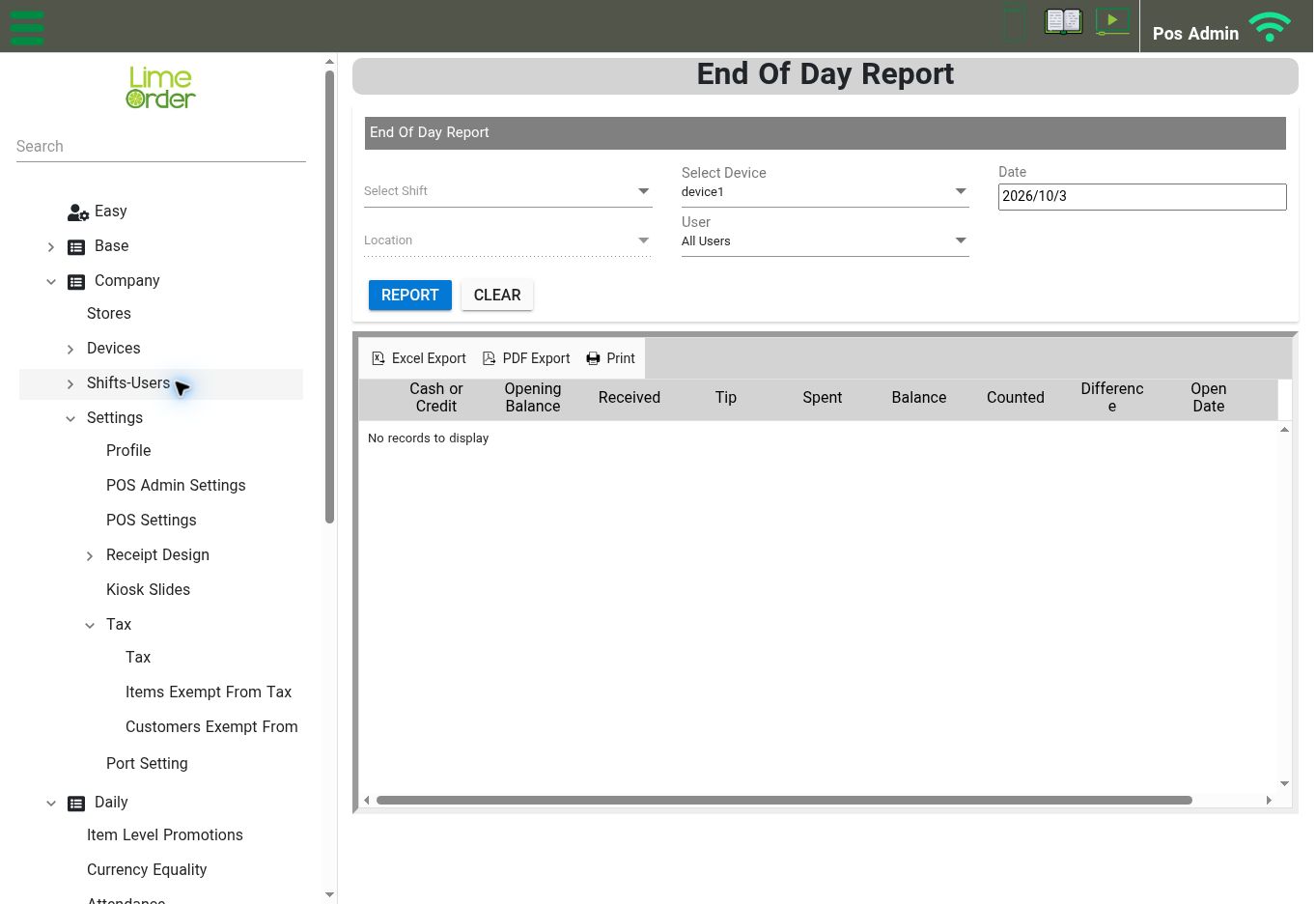
End Of Day Report: set filters, select Report, then use Excel Export, PDF Export, or Print. View full-size screenshot
Open: Reports → Daily Report → End Of Day Report
- Review Select Device, Date, Select Shift, and User.
- Review the location filter where available.
- Select Report.
- Review the results before exporting.
- Use Excel Export, PDF Export, or Print as needed.
- Select Clear when you want to reset the filters.
The result grid includes Cash or Credit, Opening Balance, Received, Tip, Spent, Balance, Counted, Difference, Open Date, and Close Time.
The Daily Report branch also includes End Of Day Report – Non Shift, Best Selling Days, and Best Selling Hours. Choose the report that matches the question you are investigating.
“No records to display” means no records are currently shown for that view. Review the date, device, shift, user, and location selections before concluding that there was no activity.


