

Table of Contents
Store settings #
POS Admin • Screenshots show example records. Select any screenshot to enlarge it.
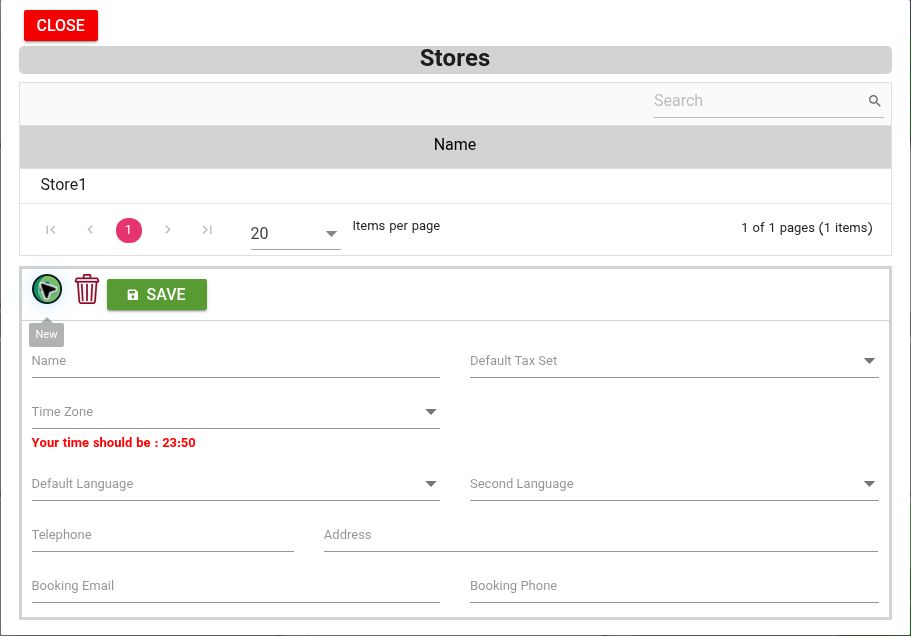
Store form: set the name, tax set, time zone, languages, and business contact details. This example shows an empty form. View full-size screenshot
Open: Easy → Stores, or Company → Stores
- Select a store from the list.
- Review Name, Default Tax Set, and Time Zone.
- Review Default Language, Second Language, Telephone, and Address.
- Review Booking Email and Booking Phone if used.
- Select Save.
The screen displays “Your time should be” beside the time zone setting. Use this as a check that the store’s configured time zone is appropriate. The store list also has Add/New and Delete controls.


